
This article provides step-by-step guidance on how to add, edit, and delete users within a team. It also explains the different roles available and the permissions associated with each.
✅ Note: Make sure you’re logged in and working within the correct team. If you're unsure or facing access issues, please reach out to your account manager or contact support.
How to Add New User to your Organization
Steps
- In the dropdown at the top, ensure you are on the right organization . Go to "Settings" -> "Users". You will see a list of all users who currently have access to this organization
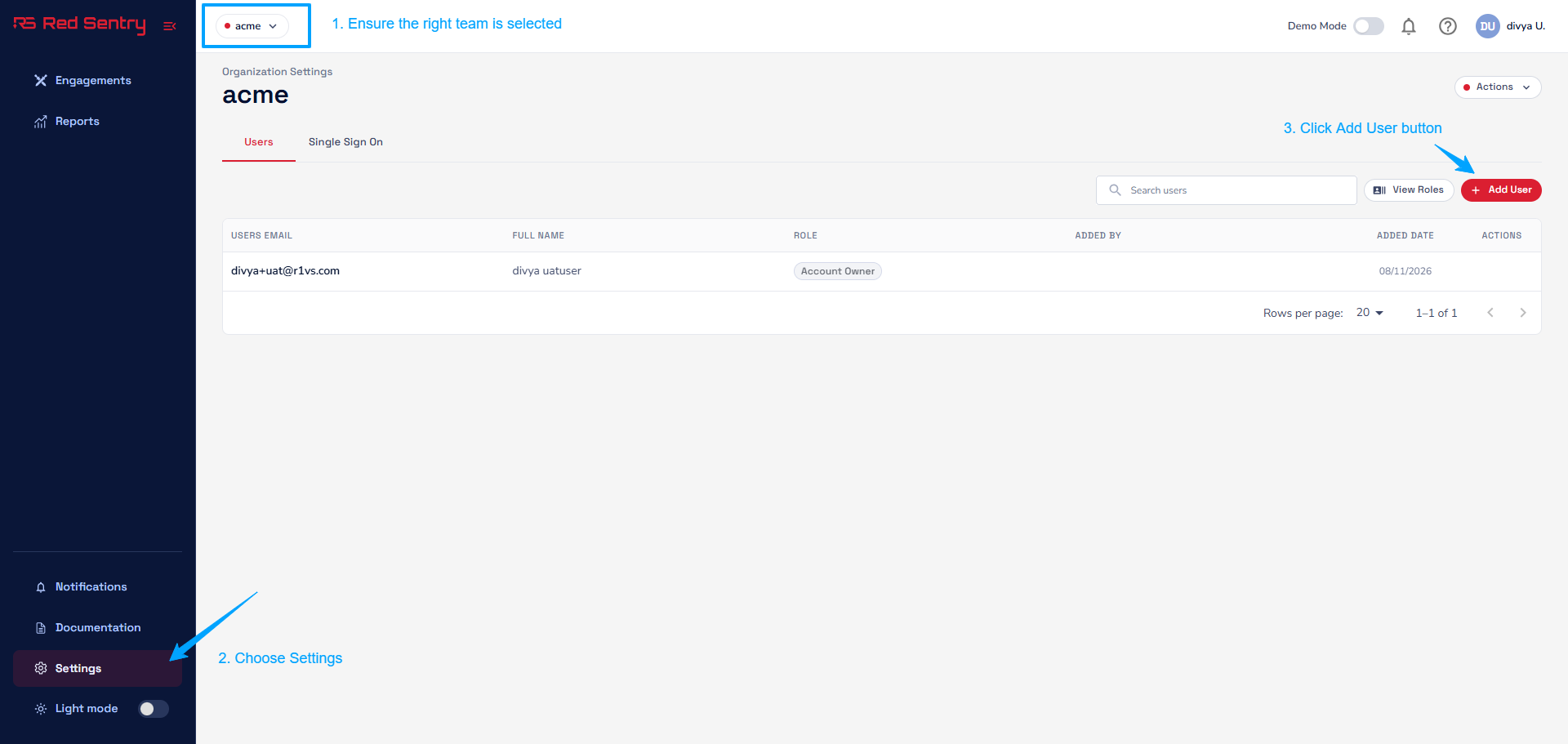
- Click on Add Users button. An Add User dialog will appear.
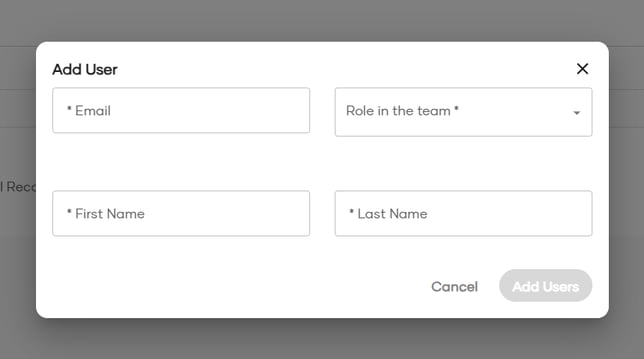
- Enter user's email address, First and last name. select a role (refer this for more details)
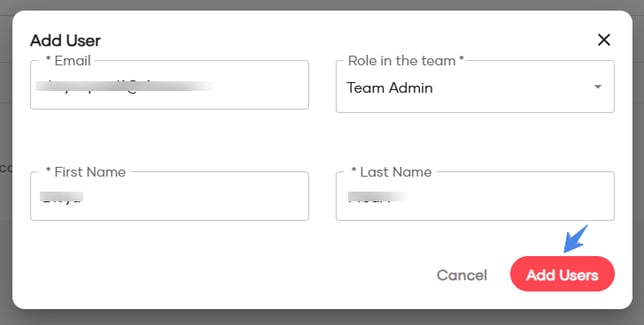
- Click Add Users to complete the process. The new user will be listed now in Users screen.
Understanding Roles
Roles define the level of access a user has within the team. To view available roles and their permissions, Click the View Roles button in the Users tab. A popup will display the role descriptions and permissions.
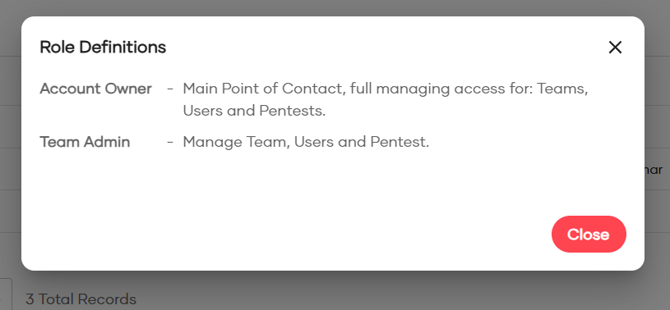
Available Roles
- Account Owner This is the user who signed up in the platform and created the team. This Primary user which is the main point of contact and full access to all data and settings.
- Team Admin This is the role assigned to any new user added to the team. Team Admins have access to all pentest details and can manage users.
⚠️ There can only be one Account Owner per team. If ownership needs to be transferred, please contact support.
How to Edit User in the Team
To edit an existing user:
- Navigate to Settings → Users. You will see a list of all users who currently have access to the team.
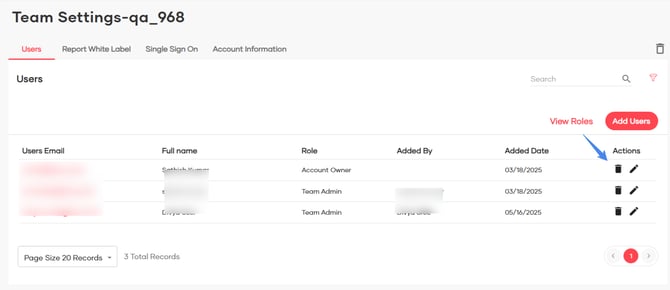
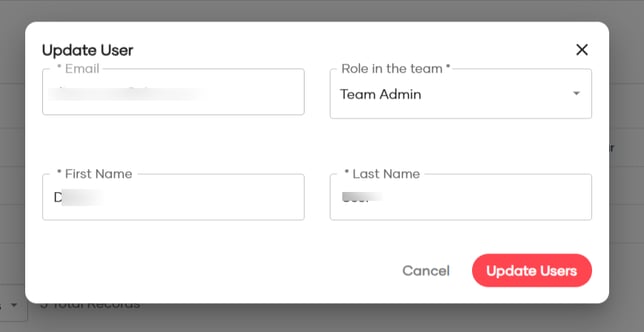
- Click the Edit icon next to the user you want to modify.The Update User dialog will appear.
-
In the dialog, you can update the following details:
-
First Name
-
Last Name
-
Role
-
🔒 Note: A user's email address cannot be edited. If a user was added with an incorrect email, the recommended workaround is to delete the user and re-add them with the correct email address.
4. After making the necessary changes, click Update Users to save.
How to Delete a User
To delete an existing user:
- Navigate to Settings → Users. You will see a list of all users who currently have access to the team.
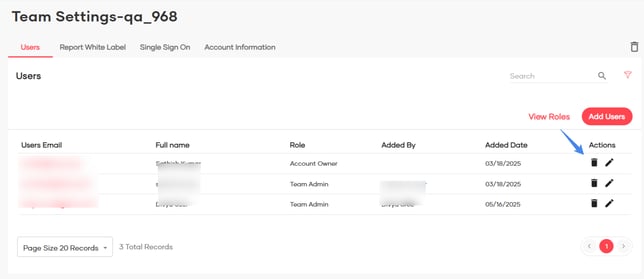
- Click the Delete icon next to the user you want to remove. The Remove User confirmation dialog will open.
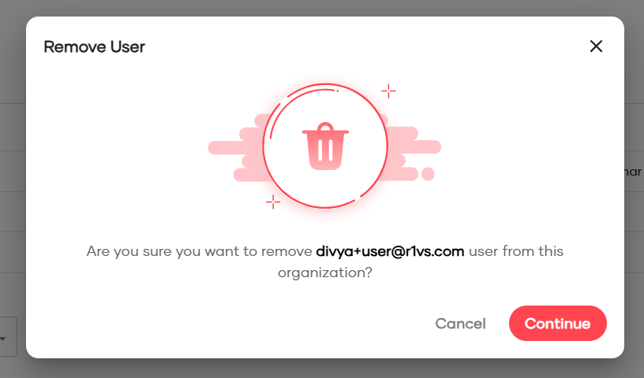
- Click on Continue button and delete the user from the team.