
The Communication tab allows you to collaborate effectively with your team and the Pentest team during the project. You can send messages, tag users, and refer to specific projects or pentests.
Navigating to the Communication Tab
You can access the Communication tab in two ways:
-
From a Specific Engagement:
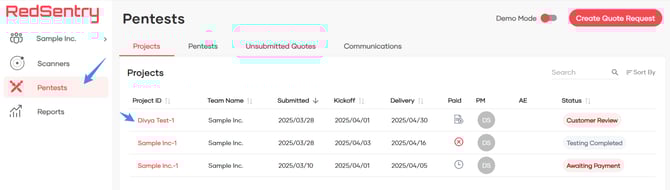
- Select engagements from the side menu.
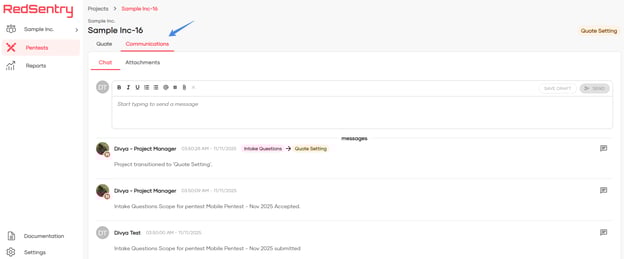
- Choose a specific engagement, and
- Click on the Communications tab
2. From the Communications tab
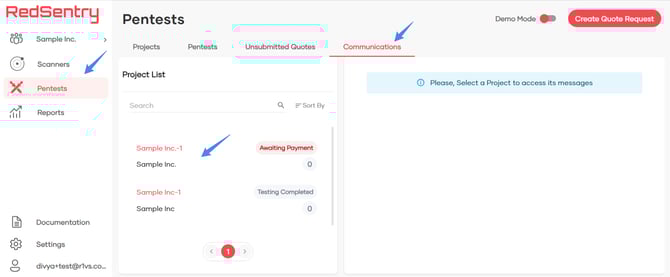
- Navigate to Engagements from the side menu
- Click on the communication tab.
- Then, choose a engagement to view and send the messages
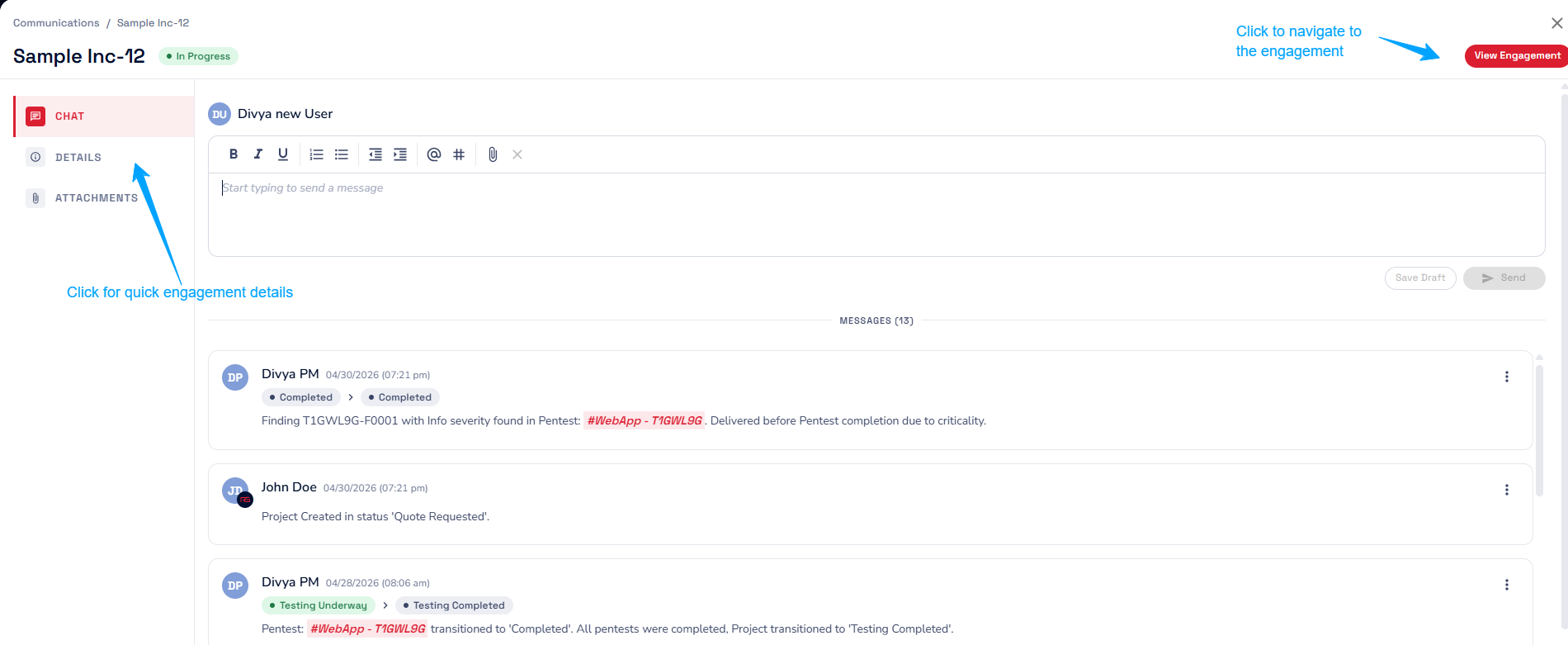
- From here, you can view messages, quick engagement details or even navigate to the engagement for more details.
About Communications
- All the updates related to the engagement/assessments are automatically logged here. For example
- When a engagement is transitioned to 'Quote Setting'
- when a engagement is ready for 'Customer Review'
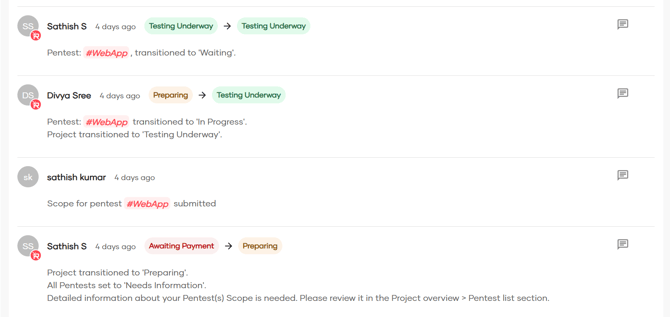
- You can also send and receive messages in this tab.
- Just type the message in the text editor and click Send.
- Save Draft to finish the message later.
-
When sending a message, you can tag specific users to immediately notify them — for example, to mention them in an update or to ask questions.
-
You can also add attachments to the messages to share relevant files or documents required for pentests or for the project.
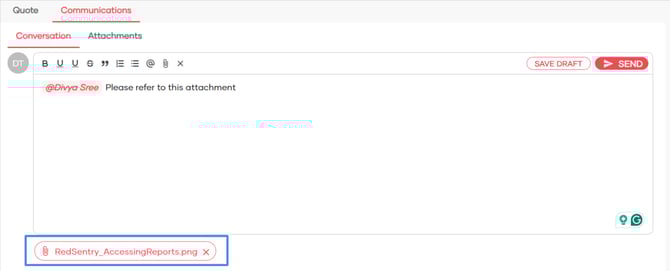
File uploads up to 100 MB are supported. You can attach documents, images, and other files needed for your project.
Reply in Thread
To keep conversations organized and context-specific, you can reply directly to a message using threads. This is useful for grouping related discussions together under a specific message, making it easier for everyone to follow along.
To reply in the thread, click on the Message icon or the # replies
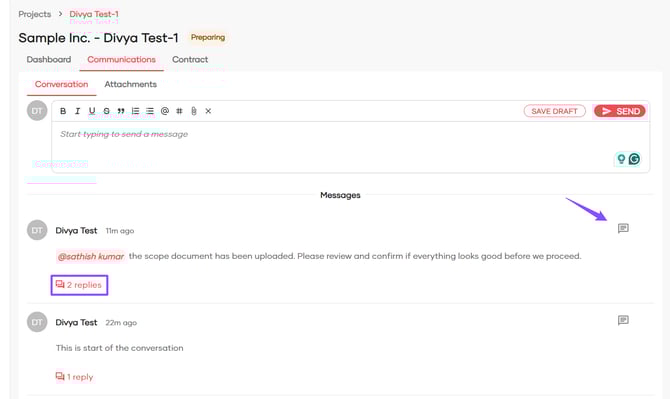
-
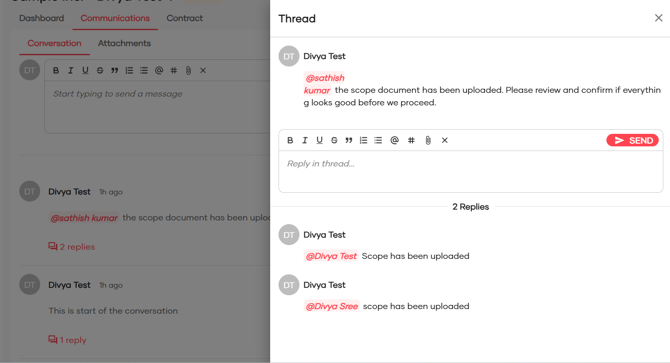
A side panel will open (as shown below), where you can view existing replies and type your response in the "Reply in thread..." box.
-
Use formatting, @mentions, and attachments as needed — just like in the main chat.
Tagging Users
-
Use an @mention to tag specific people. The tagged user will receive an email notification about the message.
-
When sending a message, you can tag specific users to immediately notify them.
-
You can tag:
-
The Pentest team assigned to the engagement, including the Project Manager and Account Executive.
-
Your internal team members who have access to the project.
-
- Whenever you tag a user, they will receive a new message notification and also a email notification.
Tagging Pentest
-
Use # to mention a specific assessment within a project. This helps set the context clearly when you're providing an update or asking a question.
- You will be able to tag assessments only after the project is initiated.
- Click on the tagged assessment to navigate and view the assessment details
- The project may contain one or more Additional services. Additional services can also be tagged in the messages.