Skip to content
  • There are no suggestions because the search field is empty.

Creating Quote Request

Red Sentry provides Penetration Testing as a Service (PTaaS), where our expert pentesters thoroughly assess your company's security posture and report all discovered vulnerabilities. This allows you to address and fix them before malicious actors exploit these weaknesses.

This article explains how to create a Quote Request to get started with penetration testing service with Red Sentry

--------------------------------------------------------------------------------------------------------------------

For Non-Users

If you are not yet a Red Sentry platform user, follow these steps to request a quote:

  • You will be redirected to a Quote Request screen.
  • Fill in your Company Information.
  • You can click Send to submit the request without adding pentest details.


  • You can click Send to submit the request without adding pentest details.


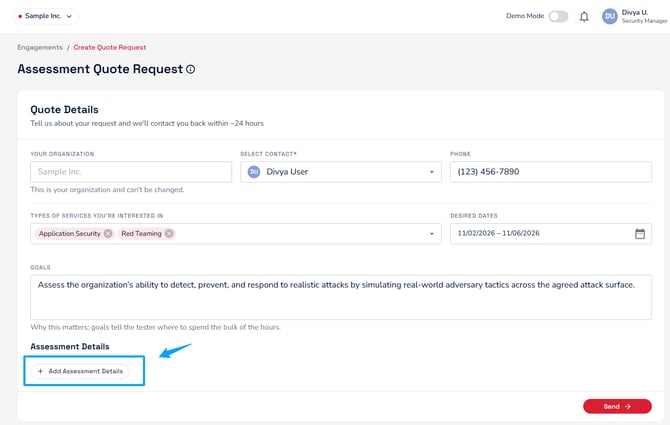
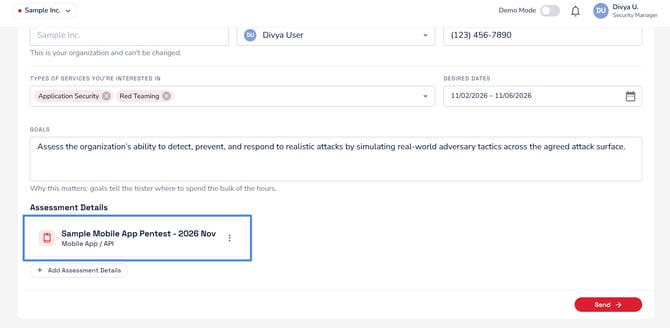
  • If you already know your pentest requirements, click Add Pentest Details to browse the available pentest types and provide additional information.

  • Complete the mandatory fields in the form and click Send.


Creating Quote Request5


Once submitted, you will receive an email with instructions to log in to the Red Sentry platform.

Follow the steps in the email to access your account and view real-time updates on your quote request.


For Red Sentry Users

If you are already a registered Red Sentry user, follow these steps to create a quote request:

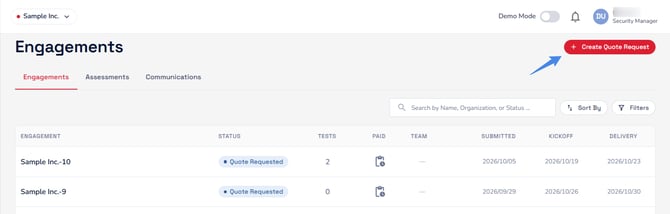
  • Log in to your Red Sentry account.
  • Navigate to the Pentest option in the side menu and click on Create Quote Request.

  • Enter the Desired Testing Start Date, Delivery Date, and Your Goals. These details will help us better understand your requirements and ensure an effective assessment.

  • Certain information will be pre-filled based on your account. You can review and update these details as needed before proceeding.

Creating Quote Request9

  • Click on Define Scope to proceed to the next step.

--------------------------------------------------------------------------------------------------------------------

Whether you're a new user or an existing Red Sentry user, the next steps to define the scope are the same:

  • Scope helps us understand your specific testing requirements in detail. 

Creating Quote Request10

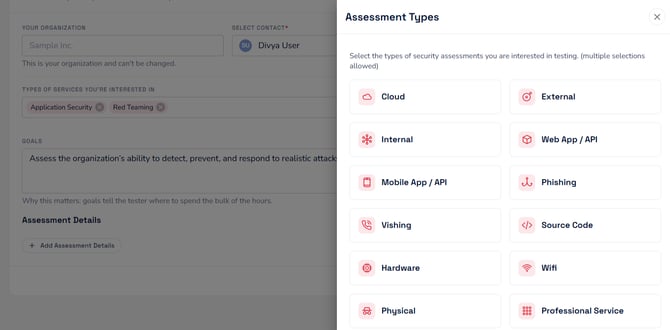
Red Sentry offers a variety of penetration tests—you will need to select and add the required tests based on your needs.

  • Cloud
  • External
  • Internal
  • Web App / API
  • Mobile App / API
  • Phishing
  • Vishing
  • Source Code
  • Hardware
  • Wifi
  • Physical
  • Other - Custom Pentest

You can add one or more tests to your quote request. You can also include multiple pentests from the same service category.

Adding a Test

  1. View Test Details

Click on a particular Test to explore detailed information about each available pentest. For every test, you will find:

  • Quick Video – An overview explaining the test, what our pentesters identify, and why the test is essential.
  • Sample Report – Provides an example of the findings and deliverables you can expect.
  • Methodology Documentation – Outlines the testing process and techniques we follow.

Creating Quote Request11

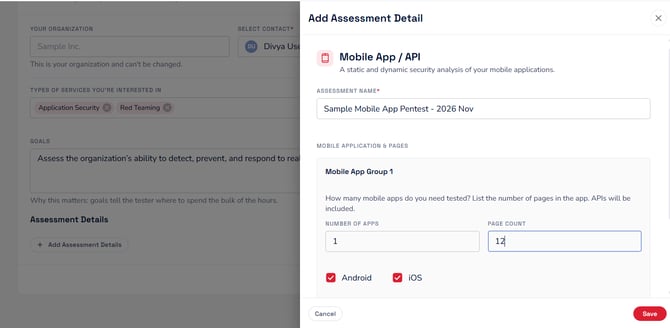
2. Enter Test Information

  • Test Name: Provide a unique name for your reference.
  • Answer Questions: Respond to a few questions to help us understand your environment and testing needs.
  • Add Notes: Include any additional information that will assist with defining the scope.

 3. Add to Quote Request


Once you’ve entered the required information, click Add Pentest to include the test in your quote request.

Creating Quote Request12

Adding Multiple Services

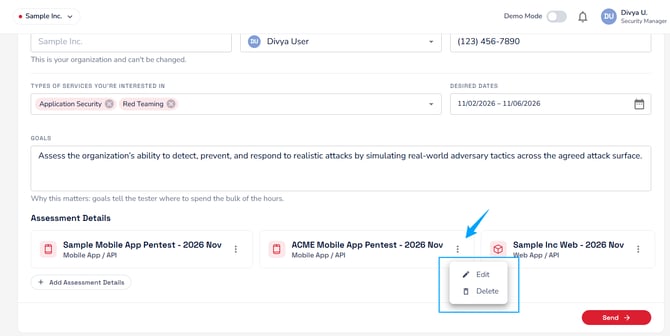
  • Repeat the above steps to keep adding the all the required services to the quote request.

Each time you add a pentest, the quote count will automatically update, allowing you to track the number of tests included in your request.

Creating Quote Request13


Review Quote

Once you have added all the required pentests, follow these steps to review your quote:

  •  
    • Click on the Review Quote button at the bottom of the page.
    • Alternatively, select Quote at the top to verify your added tests and then click Review Quote.

Creating Quote Request14

Verify Your Pentests:
Ensure all your selected tests are listed and confirm that the details align with your requirements before proceeding.

Select Edit if you want to modify the Project details. After making changes, select Save Changes to update your quote.

Creating Quote Request15

Submit the Quote

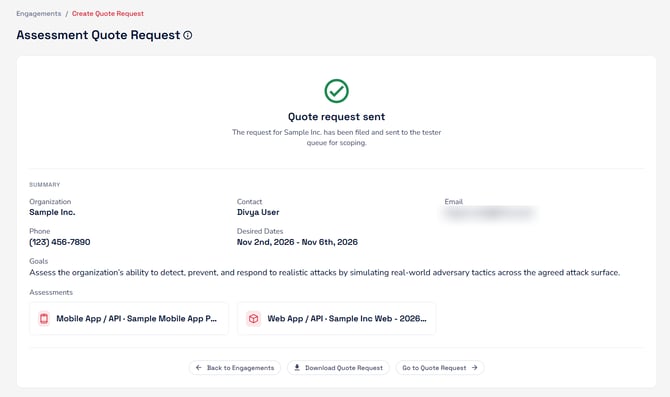
Once you have reviewed and finalized your quote

  • Click on Submit Quote to send your request for assessment.
  • Our team will review the details and get back to you with the next steps.


Creating Quote Request16


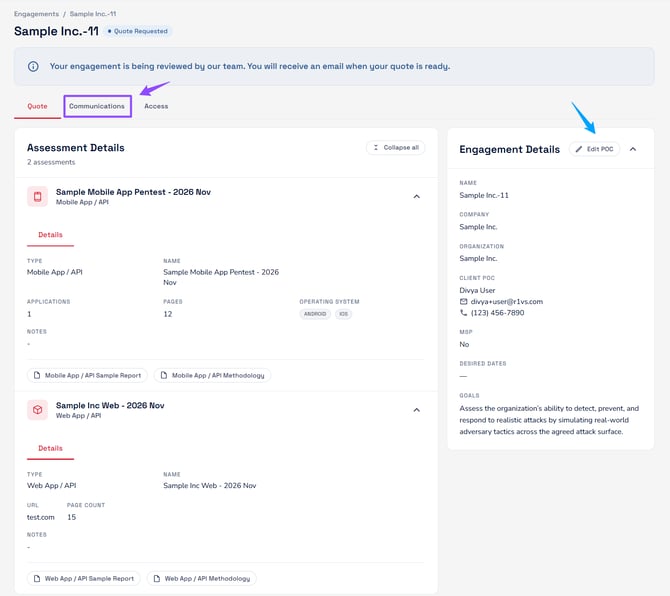
Click on Return to Projects to navigate back to the Projects section. Your submitted quote request will be displayed there for tracking and future reference.


--------------------------------------------------------------------------------------------------------------------

Accessing an Unsubmitted Quote

If you need to collaborate with your team or gather additional details before submitting a pentest quote request, you can resume your work at any time. Your progress is saved automatically, allowing you to pick up right where you left off.

Follow these steps to access and continue an unsubmitted quote:

  1. Log in to the Red Sentry platform.
  2. Navigate to the Pentest section from the side menu.
  3. Select Unsubmitted Quotes to view all pending quote requests.
  4. Click on the desired quote to resume and continue the Quote request process.

Creating Quote Request18

Share Quote 

We allow sharing unsubmitted quotes to facilitate collaboration with your team when creating a quote request. You can share with:

  • Existing Team Member 

      • Click on the Share Quote option.
      • Type the email address of the team member. The system will auto-populate matching entries—select the correct one.
      • To view and edit the quote, the user must have admin access. Check the box to grant the Administrator role. This way the shared user can assist you in completing the required details.
      • Click Share Quote to send the quote for review.

Creating Quote Request19

  • Non-Team Member  

      • Toggle on Share with a Non-Team Member to enable external sharing.
      • Enter the following details:
        • First Name
        • Last Name
        • Email Address
      • Note: The user will be added to your team. And, To view the quote - the new team member must also be given Administrator access—ensure the checkbox is selected.
      • Click Share Quote to complete the process.

Creating Quote Request20


View Shared Status / Disabling Access

If you have shared a quote with a team member for collaboration, you can track their progress and manage access as needed.

  • Click on the Share Quote option. 

Creating Quote Request21

  • In the Share Quote dialog, select Shared Quotes to view

Creating Quote Request22

  • The number displayed in parentheses (e.g., (4) in the above image) on the Shared Quotes tab represents the total number of users the quote has been shared with.
Column Description
Shared With Displays the Email ID of the user who has access to the shared quote
Created Shows the Date when the quote was shared
Viewed
  • Creating Quote Request23Indicates the user has viewed the quote
  • Creating Quote Request24indicates the user has not viewed the quote yet
Edited
  • Creating Quote Request23Indicates the user has made modification to the quote
  • Creating Quote Request24Indicates the user has not made modification to the quote
Completed

This reflects a sign-off from the user

  • Creating Quote Request23Indicates the user has completed the review/modifications.
  • Creating Quote Request24Indicates the user has not completed the review/modifications.


  • Disable Access : To revoke a user's access to an unsubmitted quote,
    • Click on the Creating Quote Request25 three dots icon next to the user's information.
    • Select Disable Access to immediately remove their ability to view or edit the quote
  • Refresh Status : Click on the Reload button to refresh the dialog and view the latest status of the shared quote