You can switch between Email MFA and Authenticator App MFA anytime to suit your workflow. Follow the steps below based on your current MFA method.
-
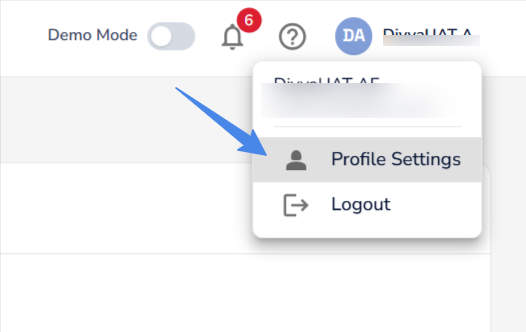
Click on your profile at top right and choose Profile Settings
-
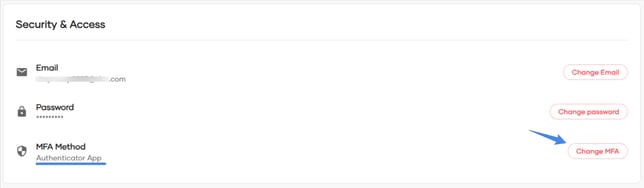
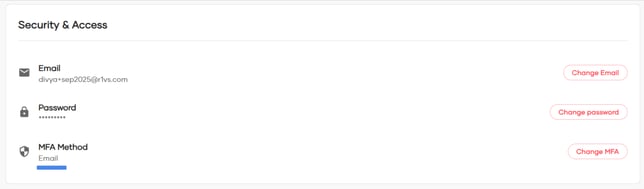
In Security & Access, select Change MFA.
-
Switch to Authenticator App MFA
-
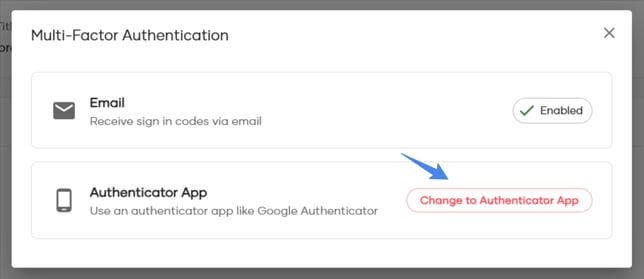
Choose Change to Authenticator App.
-
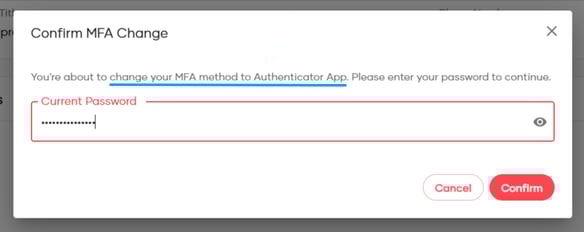
You’ll be asked to verify your identity:
-
Enter your login password, then
-
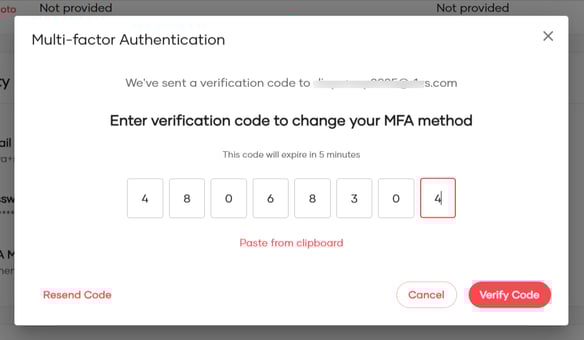
Enter the verification code sent to your email.
-
-
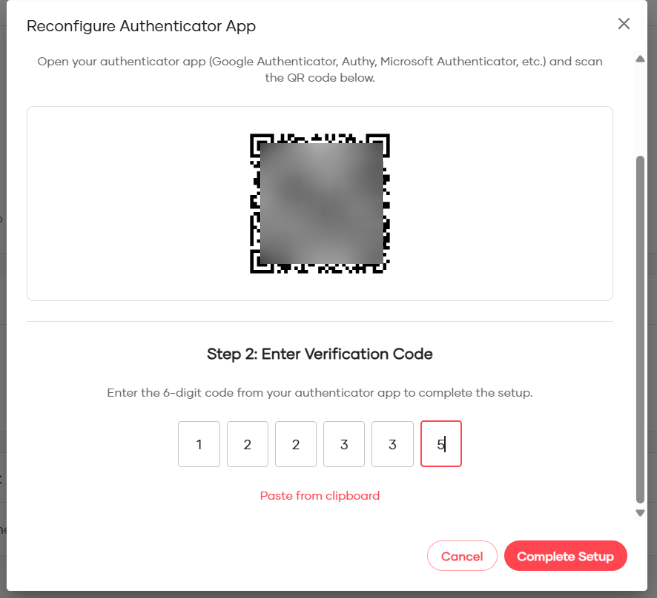
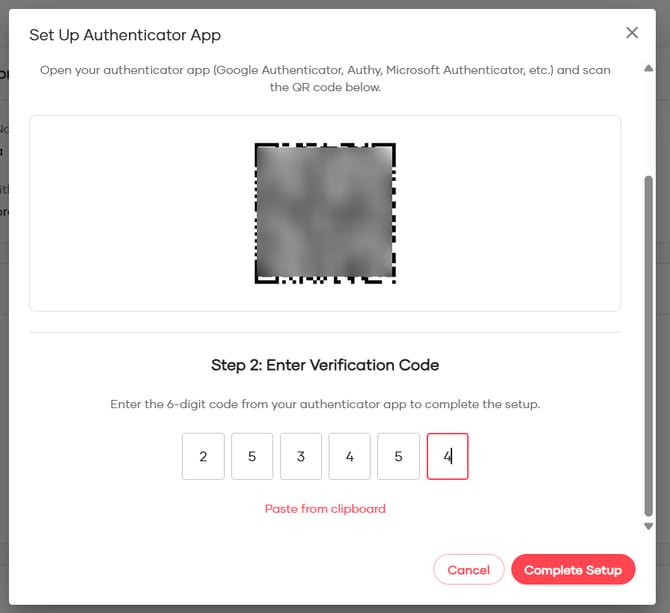
You’ll be shown a QR code. Open your Authenticator App (Google Authenticator, Authy or Microsoft Authenticator, etc.) and scan it. Then, Enter the 6-digit code from the app to complete setup.
-
Once verified, your MFA method will be switched to Authenticator App.
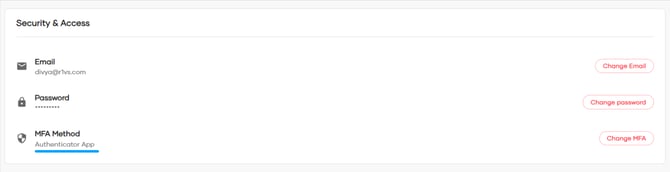
From your next login onward, you should use the Authenticator App for MFA. Email codes will no longer be sent.
-
Switch to Email MFA
-
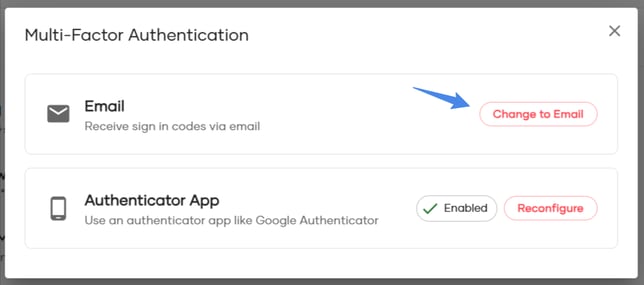
Since your current MFA method is Authenticator App, You will see an option to change to email or reconfigure if you want to switch devices.
-
Click on Change to Email. You’ll be asked to verify your identity:
-
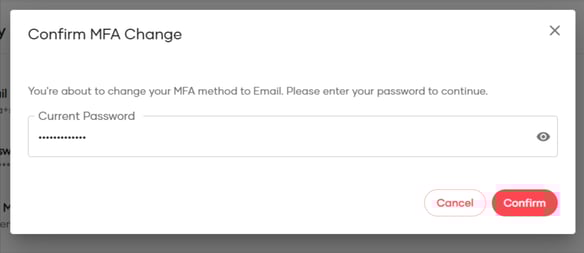
Enter your login password, then
-
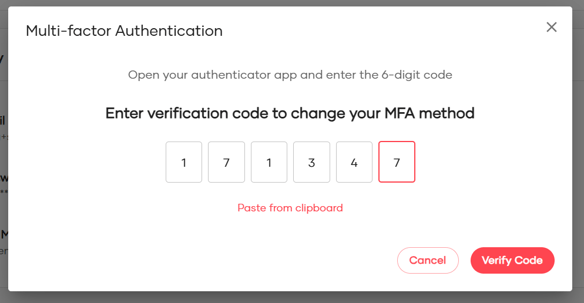
Enter the verification code from your Authenticator App.
-
-
A verification code will then be sent to your registered email address.
Enter this code to confirm the change.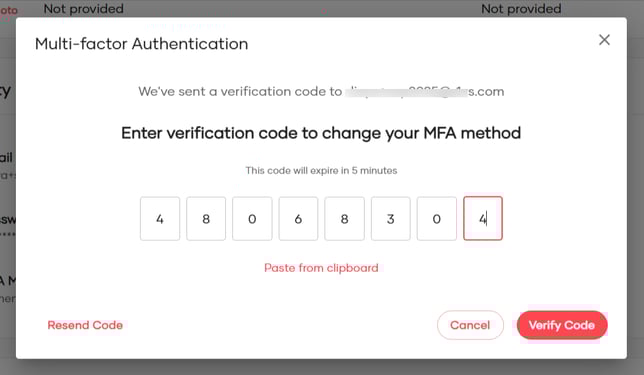
-
Once verified, your MFA method will be switched to Email.
From your next login onward, you’ll receive verification codes via email. Authenticator App MFA code will no longer work.
Choose the MFA method that best fits your workflow, but keep in mind only one MFA method can be active at a time.
Reconfigure QR Authenticator App MFA
Reconfigure QR authenticator when you want to set up the same MFA on a new device.
-
Go to Profile → Security & Access → Change MFA.
-
Choose Reconfigure QR/Authenticator App.
Note:
Reconfiguration is allowed only if your current MFA method is Authenticator App.
Reconfiguration of the Authenticator App requires access to the existing device to enter the current 6-digit code.
If your old device is lost or unavailable, reconfiguration will not work, and you will need to contact support for assistance.
-
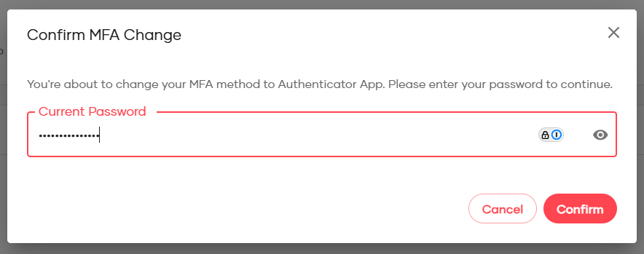
Enter the current login password for identity verification
-
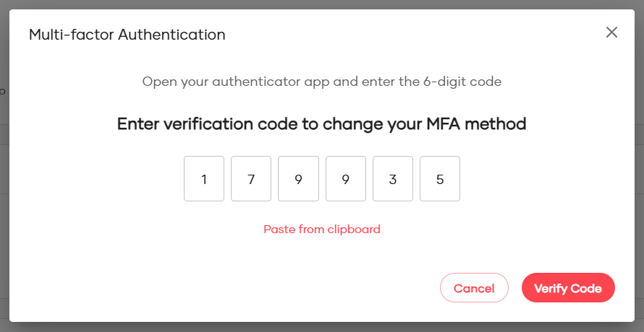
Enter the 6-digit code from the Authenticator App on your old device
-
You’ll be shown a QR code. Open your Authenticator App (Google Authenticator, Authy or Microsoft Authenticator, etc.) on your new device and scan the QR code.
-
Enter the 6-digit code from the new device and click Complete Setup