
The Engagement Viewer role lets you give people access to the Red Sentry platform while controlling exactly what they can see.
With this role, you can:
- Hide contract and pricing details.
- Restrict users to only the engagements you assign to them.
- Let viewers collaborate with the pentest team during preparation, testing, and reporting.
This role is especially useful for MSPs, partners, and teams managing multiple client engagements.
Who can manage access: Only users with the Account Owner or Admin role can add Engagement Viewers and manage their engagement access. Account Owners and Admins automatically have access to every engagement in the organization.
How Engagement Access Works
A new Engagement Viewer has no access to any engagement until you assign one. You can manage access in two places:
- Settings → Users: best for giving one person access to multiple engagements at once. Use it to add a new viewer, or to add or remove engagements for an existing viewer.
- An engagement's Access tab: best for adding several people to one engagement at once.
Manage Access from Settings
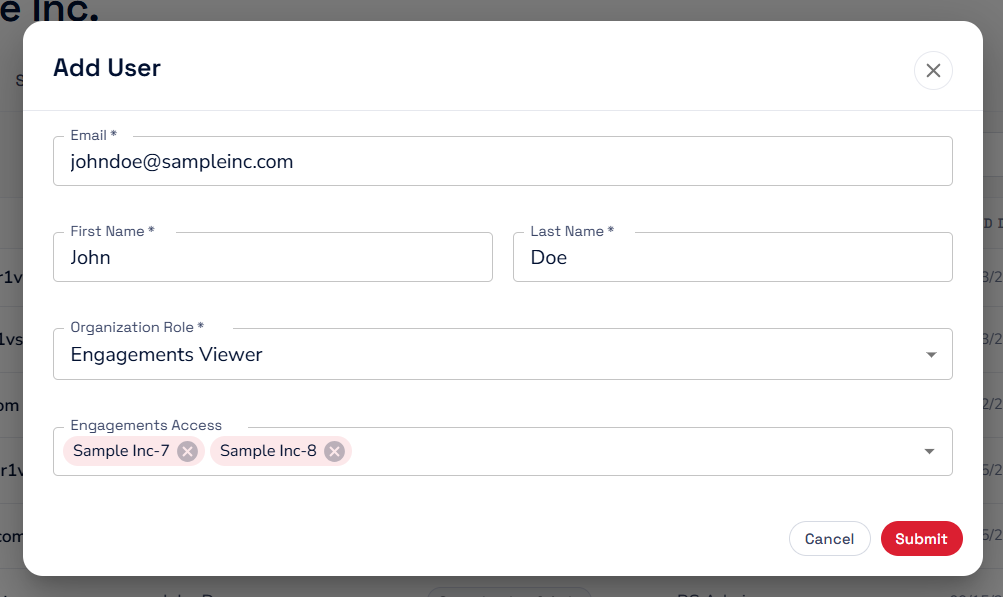
Add a new Engagement Viewer
- Go to Settings → Users.
- Click Add User.
- Enter the user's email address, first name, and last name.
- In the Organization Role dropdown, select Engagement Viewer.
- In the Engagements Access field, select every engagement the user should have access to.
- Click Submit.
Change engagement access for an existing Engagement Viewer
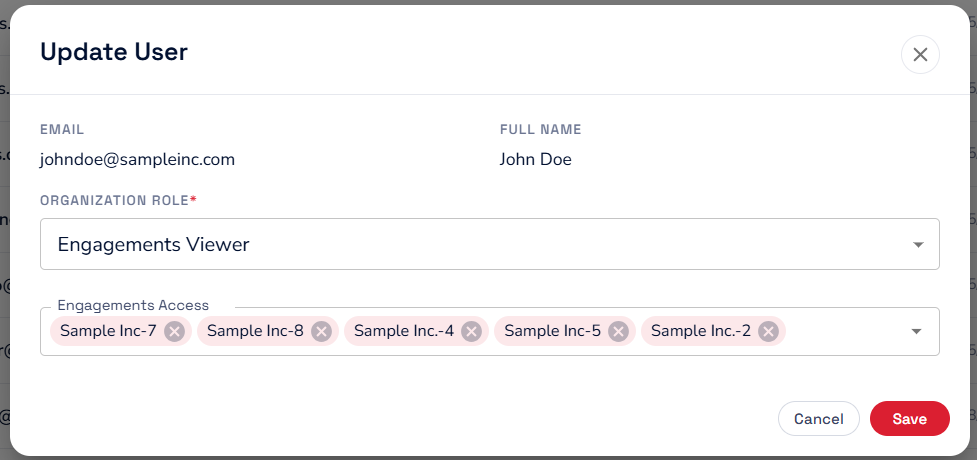
- Go to Settings → Users.
- Find the user and click the edit (pencil) icon in the Actions column.
- In the Engagements Access field, add the engagements they need and remove the ones they no longer need.
- Click Save to save your changes.
Manage Access from an Engagement
- Go to Engagements menu and open an engagement.
- Click the Access tab.
- Click Add Viewer.
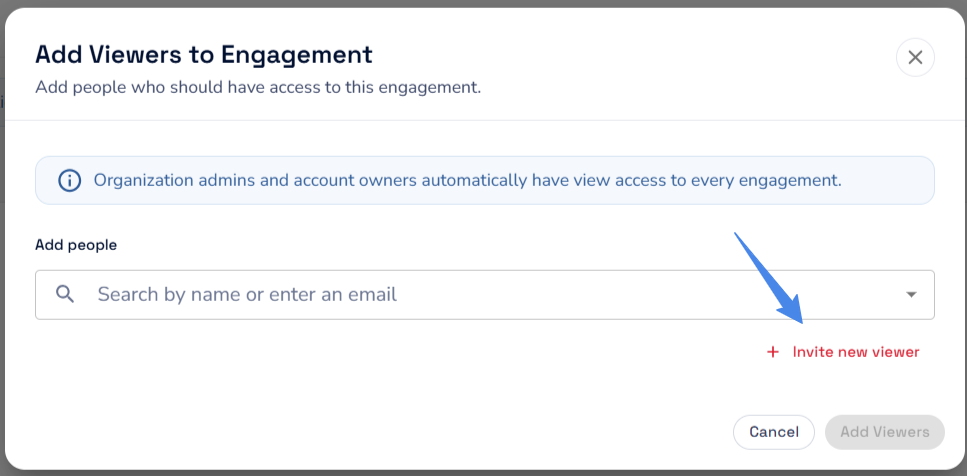
- In the Add Viewers to Engagement window, add people in either or both of these ways:
- Existing Engagement Viewers: Search by name or email and select the user.
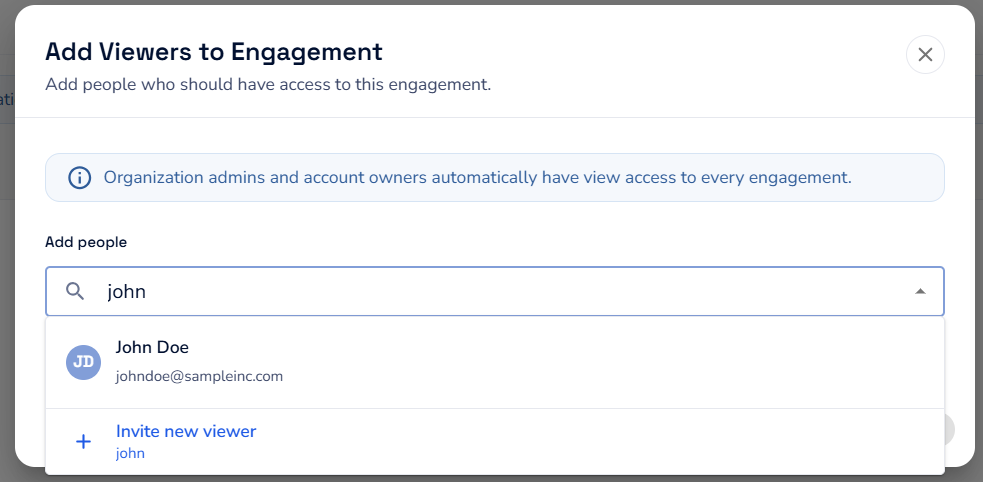
- New users: Click Invite new viewer, enter their first name, last name, and email, then click Add to List. Repeat for each person you want to invite.
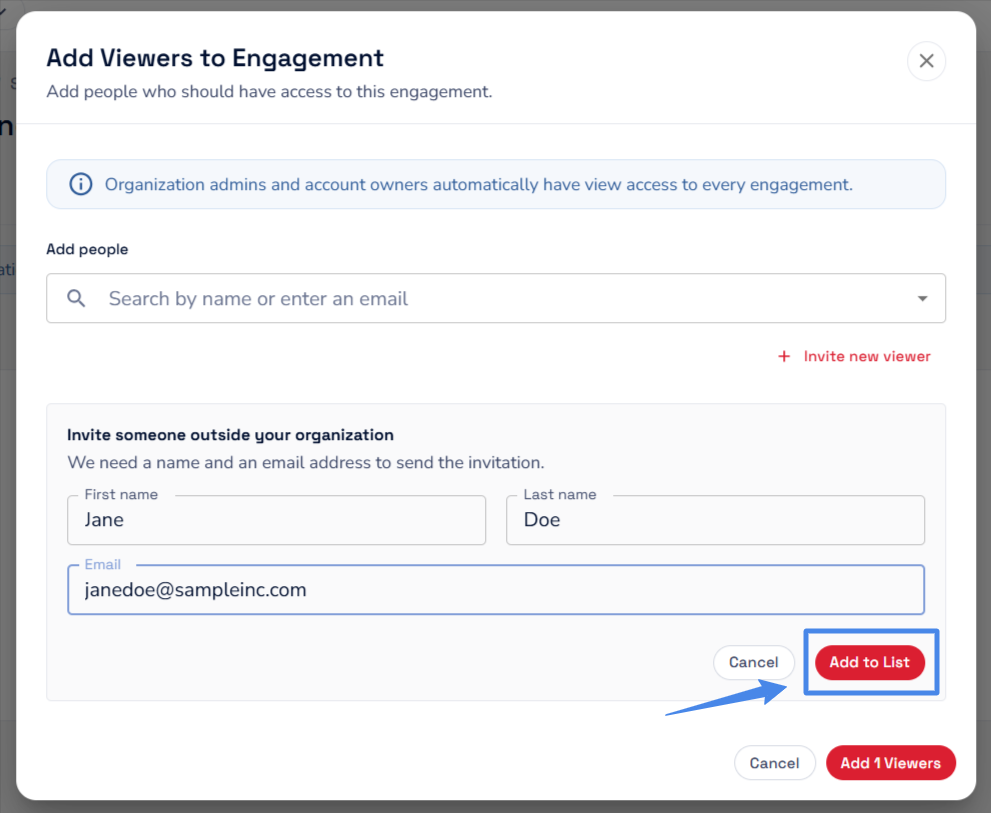
- Existing Engagement Viewers: Search by name or email and select the user.
- Review the People being added list.
- Click Add [#] Viewers.
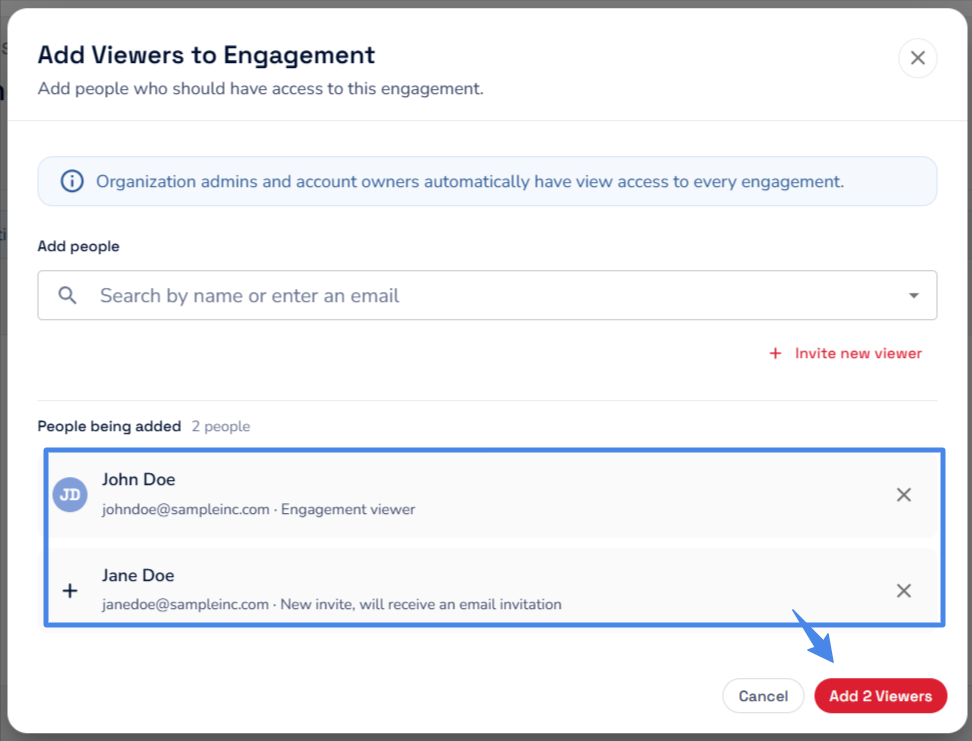
New users receive an email invitation. They are added to your organization as Engagement Viewers with access to this engagement.
What Happens When Access Changes
- Removing access: The viewer can no longer see that engagement. A viewer with no assigned engagements sees an empty engagement list.
- Changing an Engagement Viewer to Admin: The user automatically gets access to all engagements.
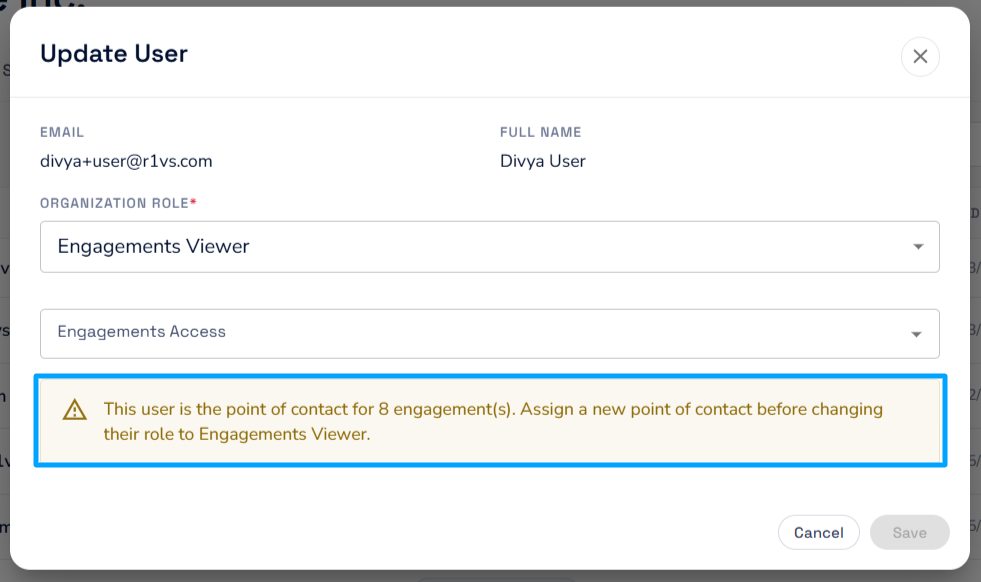
- Changing an Admin to Engagement Viewer: If the user is the point of contact for any engagements, you must assign a new point of contact for those engagements first. The Save button stays disabled until you do. After the role change, the Engagements Access field starts empty, so select the engagements the user should still be able to see.
Users with the Engagement Viewer Role
|
Area |
Can |
Cannot |
|---|---|---|
|
Engagements |
✅ View only the engagements assigned to them |
❌ See any other engagement in the organization. ❌ View Red Sentry contracts or pricing. |
|
Assessments |
✅ Track pentest progress and use platform communications to coordinate with your team and the pentest team. ✅ Access findings and reports for assigned engagements. |
|
|
Organization Settings |
❌ View or modify organization settings. ❌ View or add users. |
Use Cases for MSPs and Partner Teams
- Onboard your clients directly into the platform.
- Avoid sharing sensitive commercial or cross-client information.
- Collaborate with less email back-and-forth.
Need Help?
If you have trouble setting up access, contact Red Sentry Support at support@redsentry.com, or reach out to your Account Executive or Project Manager.