
The Assessment Viewer role allows you to give your clients access to the Red Sentry platform while protecting sensitive information.
With this role, you can:
-
Hide contract and pricing details.
-
Restrict users to only the engagements they should see.
-
Allow your clients to collaborate with the pentest team during pentest preparation, progress, and reporting
This user role is especially useful for MSPs, Partners, and teams managing multiple client engagements.
How to Add a Assessment Viewer User
Step 1: Add the user to your Team
-
Go to Settings → Users
-
Click Add User
-
Enter the client’s first name, last name and email address
Step 2: Assign the Assessment Viewer Role
-
In the Organization Role dropdown, select Assessment Viewer
-
Click Submit
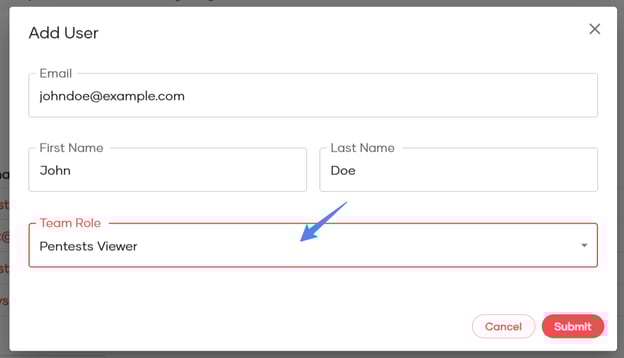
Step 3: Tell us which engagements the user should have access to
Since engagement-level access is currently configured by our support team:
-
After adding the user, share the list of engagements they need access to.
-
You can do this by:
-
Contacting Red Sentry Support at support@redsentry.com
-
Reaching out to your Account Executive or Project Manager
-
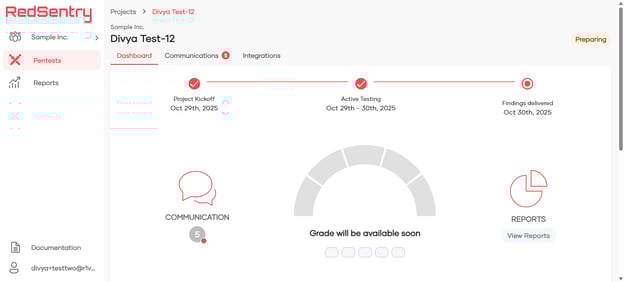
Engagement Dashboard view of a Assessment Viewer user
Users with Assessment Viewer Role
|
Can |
Cannot |
|
|---|---|---|
|
Engagements |
✅ View only the engagements assigned to them |
❌ Access engagements belonging to other clients ❌ View Red Sentry contracts or pricing information |
|
Assessments (Pentest) |
✅ Track pentest progress and use platform communications to coordinate with you and the pentest team. ✅ Access findings and reports for assessments. |
|
|
Team Settings |
❌ View or Modify team settings ❌ Add or view users in the team |
Note: A assessment Viewer will not see any engagements until our support team configures the specific engagements they should have access to.
Use Cases for MSPs & Partner Teams
-
Onboard your clients directly into the platform
-
Avoid sharing sensitive commercial or cross-client information
-
Simplify collaboration by reducing email back-and-forth
Coming soon
We are working on introducing a self-service interface so you can manage project access for your clients within the platform.