
The Manage Profile section allows you to view and update your personal details, security settings, and account preferences - all in one place.
You can update your password, manage MFA settings, upload a profile picture, or delete account / team (if eligible).
Access Your Profile
-
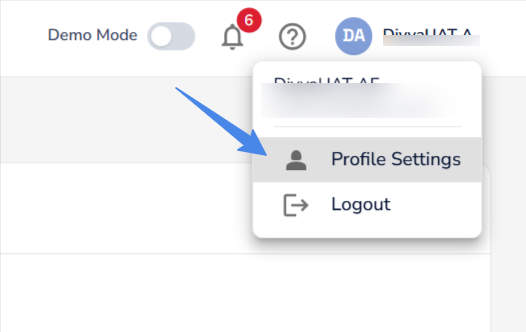
Click your profile at the top right
-
Select Profile Settings.
Contact Information
You can easily update your details such as name, job title, phone number.
-
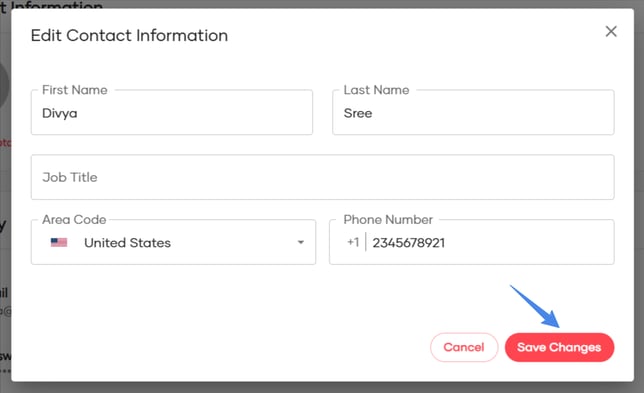
In the Contact Information section, click Edit.
-
Edit the fields you want to update.
-
Click Save Changes.
Manage Profile Picture
You can upload, change or remove your profile picture
-
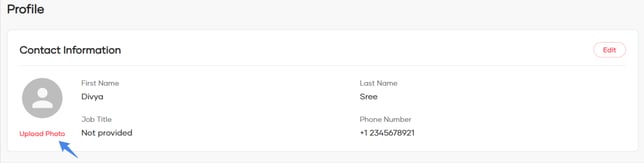
Click the Upload Photo to add your profile picture
-
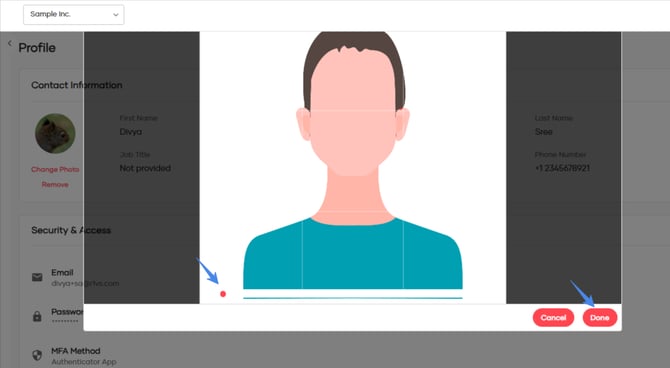
Use the zoom slider (or scroll) to adjust how close or far the picture appears before saving your profile photo. Click Done when you are ready to save it
-
Once uploaded, you’ll see options to Change Photo or Remove Photo.
Security & Access
Note: If your account uses Single Sign-On (SSO), you will not see the options to change your email, password, or MFA settings.
Please contact Red Sentry Support for any assistance or account-related updates.
Change Password
You can update your password anytime:
-
Go to Security & Access → choose Change Password.
-
Enter your current password, new password, and confirm new password.
-
Click Change Password.
-
Enter the verification code to change password
If all details are correct, your password will be successfully updated.
If the current password is invalid or the confirmation doesn’t match, an error message will be displayed.
🔔 An email notification is sent to you whenever your password is changed.
Change Email Address
To update your email address:
-
Go to Security & Access → Change Email.
-
Enter your current login password, and the new email address.
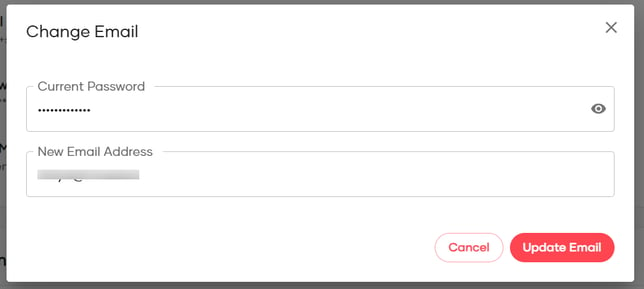
-
Complete MFA verification (using your current MFA method).
-
Then, a verification code will be sent to your new email address.
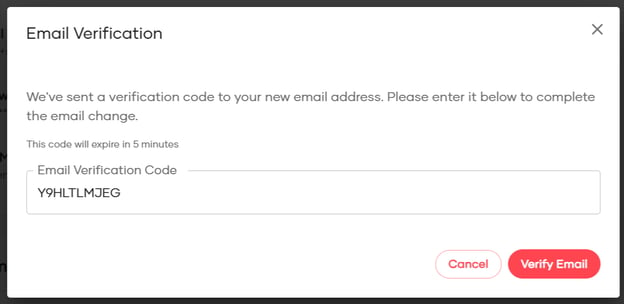
Once email verification code is entered and confirmed:
-
The new email will be displayed in the Security & Access section
-
Going forward, you can use your new email and same password.
-
The old email will no longer work.
You’ll receive confirmation emails on both your old and new email addresses notifying you about the change.
Change MFA Authentication Method
Refer this article on how to change the MFA Method.
Delete Account
If you are not an Account Owner of any team, you can delete your own account.
-
In Profile page → Go to Delete Account section.
-
Click Delete Account and confirm the warning prompt.
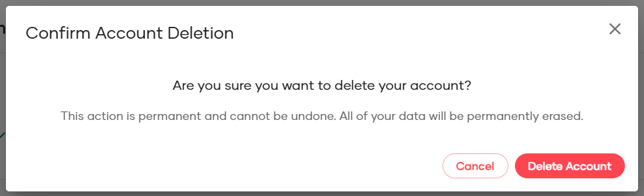
The account will deleted and your current session will be ended. You will also receive an email informing about the Account deletion.
🗑️ Delete Team (For Account Owners Only)
If you are the Account Owner, you can delete your team.
-
In Profile page → Go to Delete Account section.
-
Click Delete Account and confirm the warning prompt.
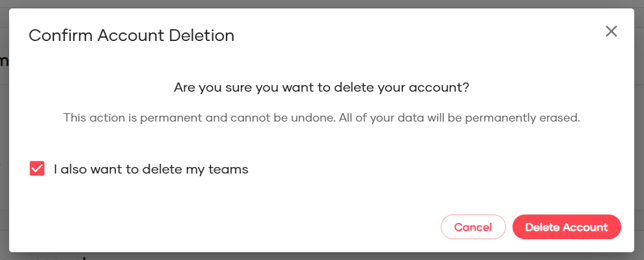
3. You can either delete just your account or delete the team by selecting the checkbox.
The account will deleted and your current session will be ended. You will also receive an email informing about the Account deletion.
Please be cautious when deleting your account because when your account is deleted, you will loose access to all your teams.