
An Engagement may contain one or more Assessments — the Engagement follows an overall lifecycle, while each Assessment runs an independent testing workflow alongside it.
This section gives you a quick visual reference for both.
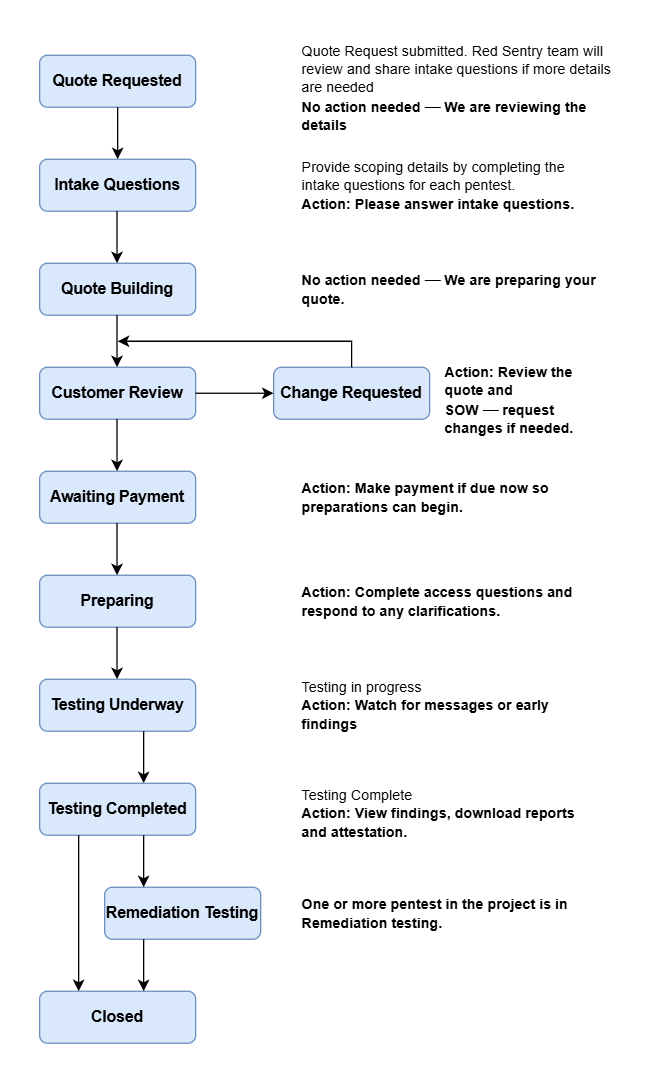
Engagement Lifecycle
|
Status |
At this stage |
Your action |
|---|---|---|
|
Quote Requested |
Your quote request has been received
|
None |
|
Intake Questions |
Intake questionnaires are shared for each assessment in the engagement. | Answer intake questions so we can scope and price your engagement. |
|
Quote Building |
The quote and Statement of Work (SOW) are being prepared. | None |
|
Customer Review |
Your quote and SOW or requested changes, are ready for review |
Review the quote and SOW. Request changes if needed, or sign the SOW to proceed. |
|
Change Requested |
Requested changes are being reviewed. | None |
|
Awaiting Payment |
Make a payment if due now so preparations can begin. | |
|
Preparing |
Preparation begins for testing activities.
|
|
|
Testing Underway |
|
You will receive email notifications for messages or early findings. |
|
Testing Completed |
|
|
|
Remediation Testing |
One or more Assessments are in Remediation testing. | Watch for Email notifications about messages and updates. |
|
Closed |
Project is closed. | None — reports remain available for reference. |
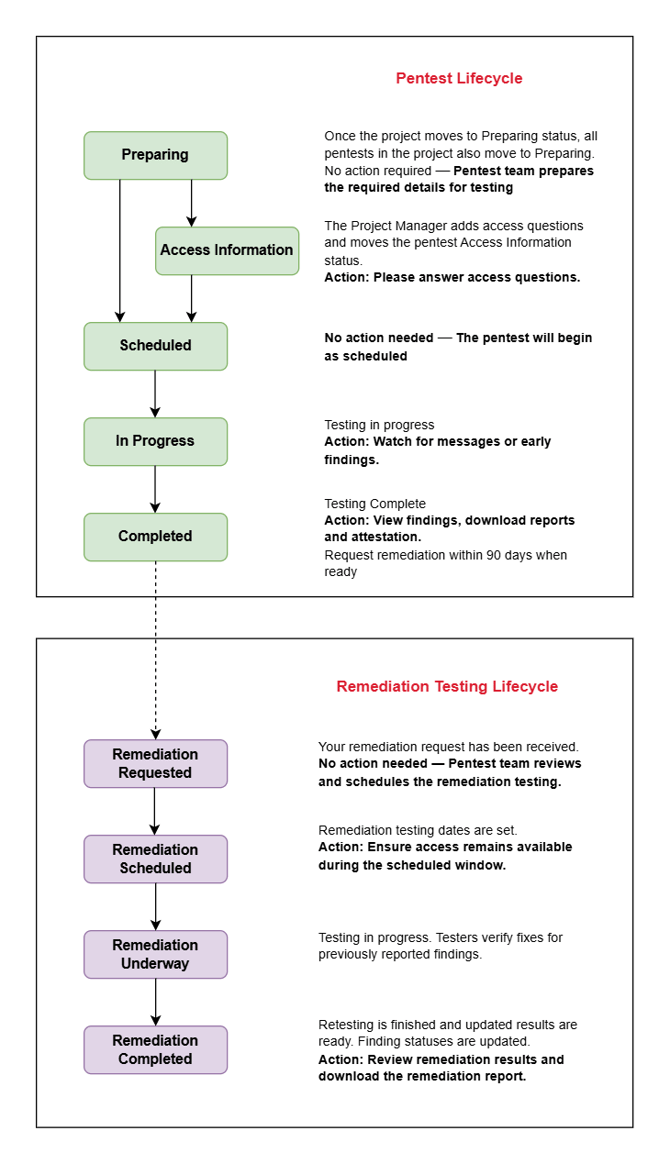
Assessment Workflow
|
Status |
At this stage |
Your action |
|---|---|---|
|
Preparing |
The Red Sentry team reviews the scope and prepares required access questions. | None |
|
Access Information |
Access questions are added to collect credentials, whitelisting, test accounts, URLs, environments, etc. | Provide access information so testing can start |
|
Scheduled |
Your Pentest is scheduled, and assigned testers will begin on the scheduled start date. |
|
|
In Progress |
|
|
|
Completed |
|
|
Once the reported findings has been remediated, you can request remediation testing.
To request a remediation testing for a Pentest, you must ensure
- you are within 90 days of previous test delivered.
- All testing credentials and URLs have been verified and are active.
- Previously reported findings have been remediated in the environments and are ready for testing.
|
Status |
At this stage |
Your action |
|---|---|---|
|
Remediation Requested |
|
None |
|
Remediation Scheduled |
|
|
|
Remediation Underway |
|
|
|
Remediation Completed |
|
|