
Once your quote request is submitted, our Account Executive begins reviewing the details. In some cases, we may require additional information to provide an accurate quote. To collect this, we will share Intake Questions with you.
Once you submit your answers, they are reviewed and accepted by our team, then the quote - including pricing and the Statement of Work (SOW) will be prepared and shared with you for review.
Before proceeding, if you need guidance on submitting a quote request, refer to How to create a quote request for detailed instructions.
This article will guide you to:
-
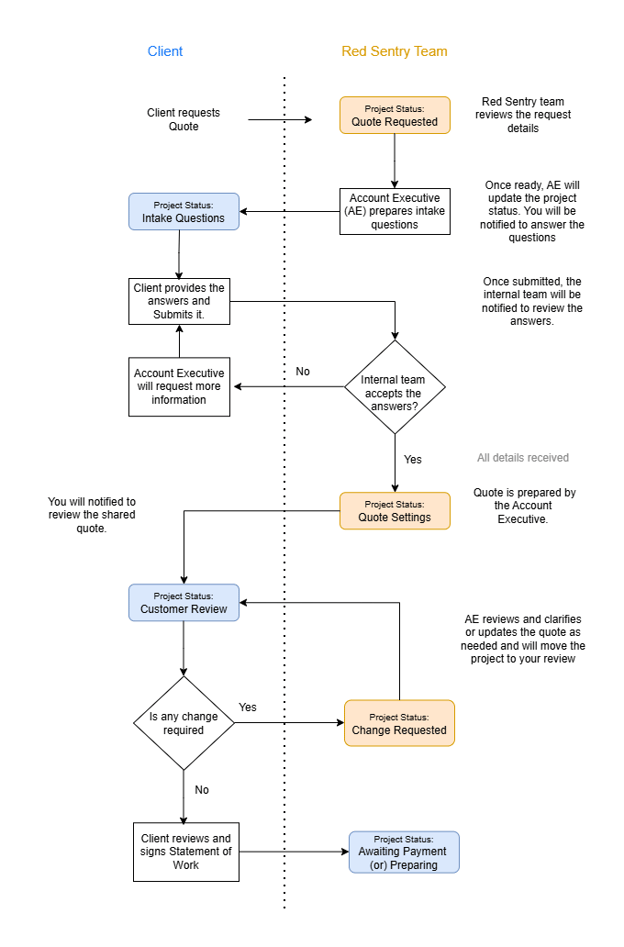
Understand the overall pentest quote review workflow.
- Review and respond to intake questions.
- Review the quote details, pricing, and Statement of Work (SOW).
-
Request clarifications or modifications if needed.
- Sign off to initiate the process.
Review and Answer Intake Questions
Once the Pentest team review your initial request, the Account Executive (AE) will prepare the intake questionnaire to get additional information. This helps the team accurately scope your engagement and provide a precise quote.
When the questionnaire is ready for all pentests, your project status will change to Intake Questions, and you’ll receive an email notification requesting your input.
How to Complete the Intake Questions
- Log in in to the Red Sentry platform.
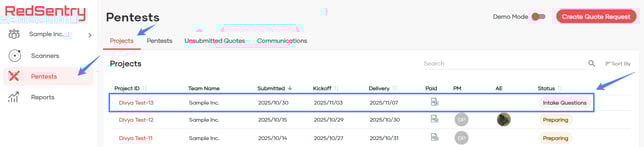
- Navigate to the Pentest menu and open the Project that is in Intake Questions status. You can also access the project directly using the link provided in your notification email.
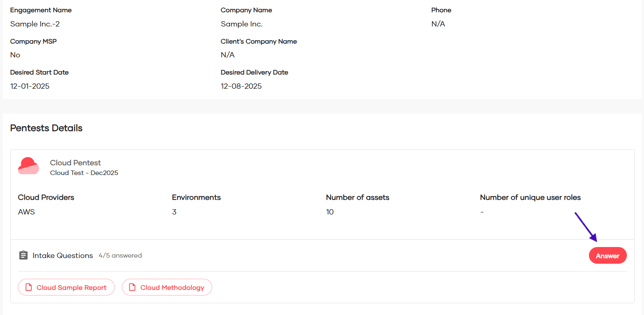
- Click the Answer Questions button for the pentest listed under the project.
-
Review and answer all questions carefully. Remember to save your progress frequently.
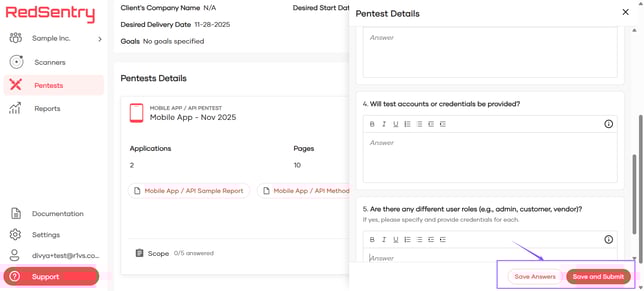
- Once you have provided all information, click Save and Submit.
Note: Repeat these steps for every pentest included in the project
What Happens Next
-
Whenever a questionnaire is submitted, the Account Executive will be notified automatically to review your responses.
-
If additional information is needed, the AE will reach out to you for clarification.
-
When the AE reviews and accepts the details, you will receive an email notification with the subject Intake Question Answers Accepted
-
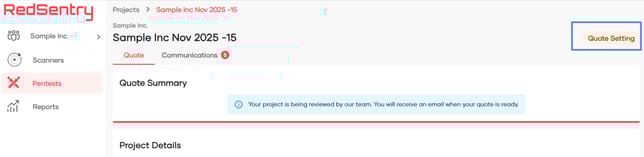
Once all intake questionnaires for the project are accepted by the AE, they will move the project to Quote Settings and begin preparing the quote. You will receive an email notifying you of this status update
-
Once the quote is ready, the project status will be moved to Customer Review status. You will receive an email notification.
Review the Quote Details
You can click on the link shared in the email notification or log in to the platform and locate the quote to review.
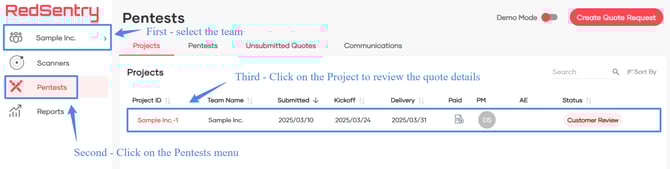
- Click the Pentest menu and navigate to the Projects tab.
Note - You need to be on the correct Team to view the quote. It should be the same team from which you requested the quote.
- Click on the Project to review the received quote details
Quote Summary
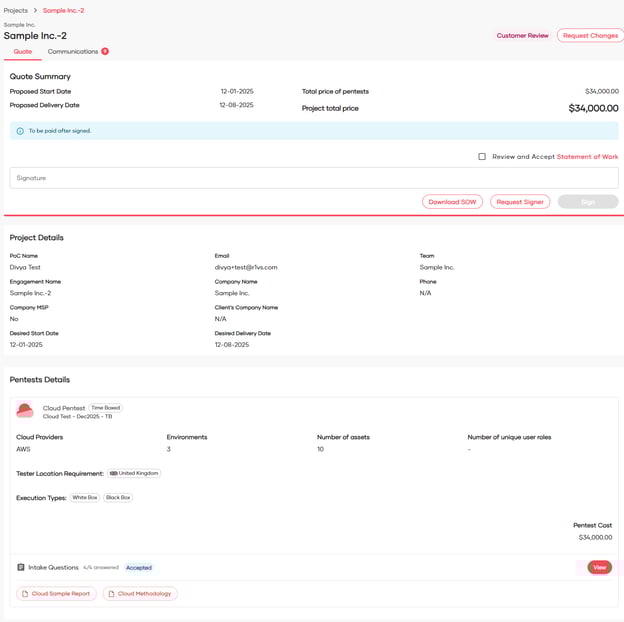
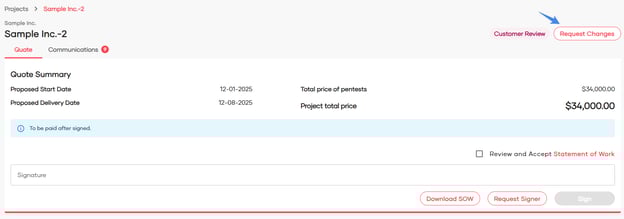
This section contains the following information:
- Proposed Start Date and Proposed Delivery Date – These dates are set by the Pentest team.
- Total Price of Pentests – The total price quoted for the pentesting services.
- Project Total Price – The total price quoted for the project
- Payment Due Information – Any relevant details about payment timelines and conditions.
Review Contract
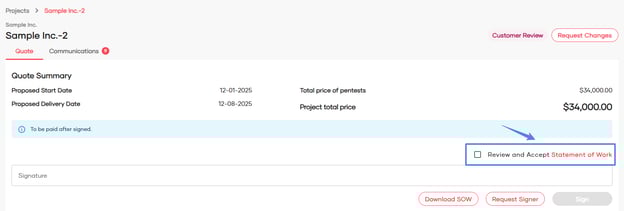
- Click on the Review and Accept Statement of Work to review the SOW
- The Statement of Work preview opens
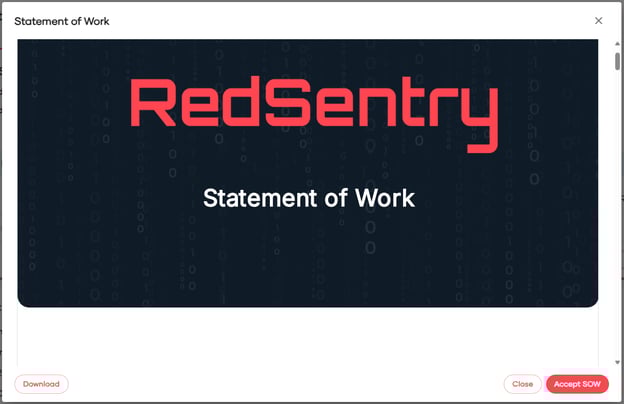
- If all the details in the statement of work look good, then you can click on Accept SOW. Then, add your signature and click Sign.
- If you require any clarification or any modifications, then you can Request Changes
Request Changes
-
If you need any modifications to the quote before signing off, you can request changes. Click on the Request Changes button at the top
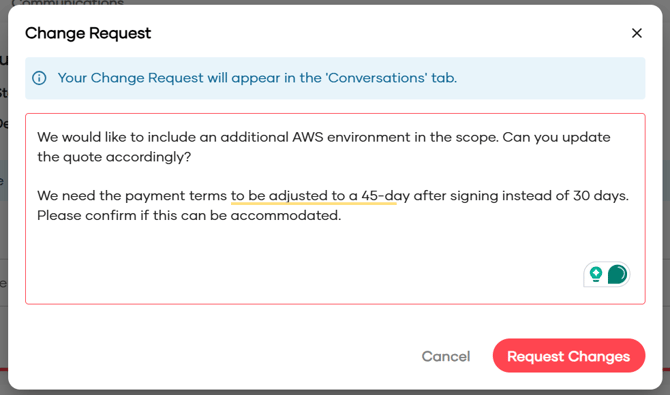
- Enter the modifications you want to request in the quote. Click on the Request Changes button to send it to the Pentest team
- Once you request the changes, the project status will be updated as Change Requested. You can see the message:
Your project is being reviewed by our Team. You will receive an email when your quote is ready.
- You will receive an email when the updated quote is ready.
- Once the Pentest team reviews and updates the quote, the project status will be changed again to Customer Review.
-
At this stage, review the updated quote and contract. If everything is satisfactory, proceed with the sign-off step to finalize the agreement and initiate the process.
Finalize & Contract Sign-Off
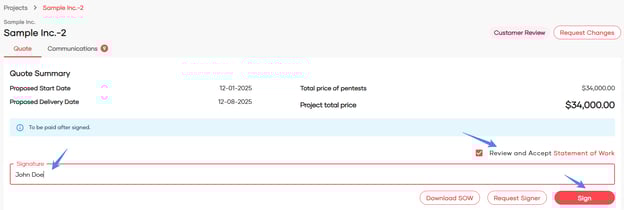
If you are an authorized signer, follow these steps to approve the contract:
-
Click the checkbox to accept the Statement of Work
-
Enter your signature in the provided field.
-
Click Sign to approve the contract.
Requesting a Different Signer
If you need someone else to approve,
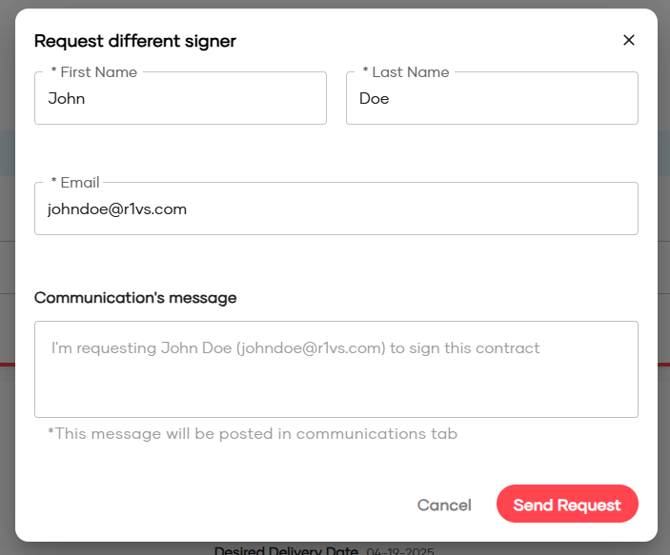
- Click Request Signer to send the contract for approval.
- Fill in the required details - First name, Last name and Email
- A Communication message will automatically be added when you fill in the required details.
- Click Send Request to send the details to the signer.
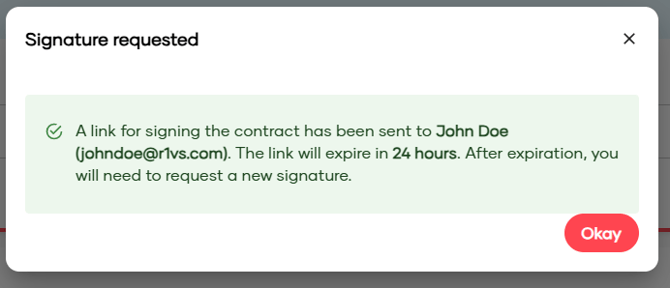
The designated signer will receive a Contract Signature Request email with the link to view and sign the contract.
Note: This designated signer does not have to be a registered user in the Red Sentry platform.
Signer’s Process
- The signer receives an email notification that looks like this:
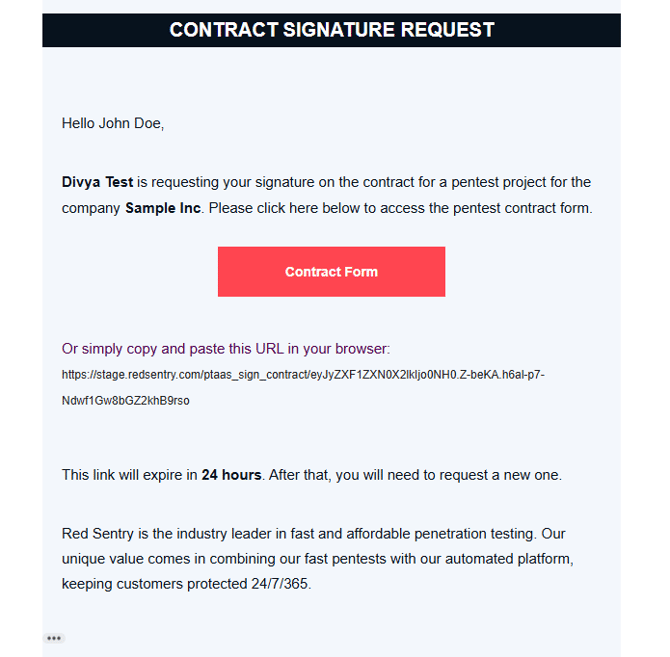
- Clicking the link opens the Quote Details page.
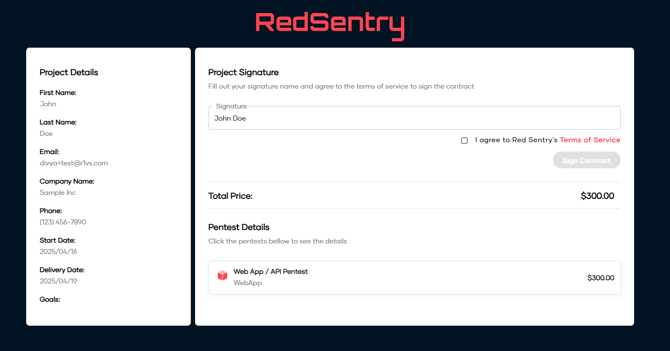
- The signer reviews the contract, agrees to the Terms of Service, and clicks Sign Contract.
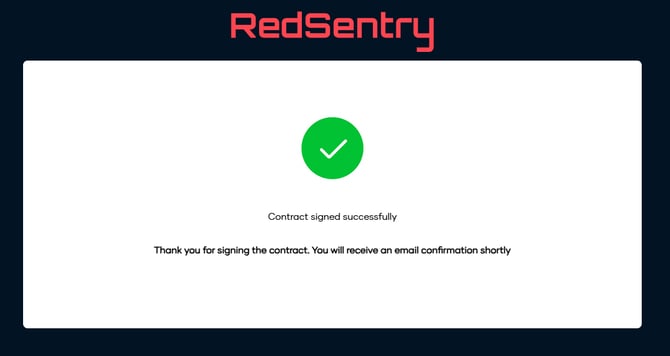
Once signed:
-
Both the requester and the signer receive a Contract Signed Notification.
-
The Project Status changes to Awaiting Payment.
Next Steps
-
If payment is due immediately, it must be completed so that the pentest team can move forward with the process.
-
If the payment is due in X days, the pentest will be moved to Preparing status and will initiated on the proposed start date