
To strengthen account security, Red Sentry now requires all new users to enable Multi-Factor Authentication (MFA) during their first login.
Existing user can also easily switch to using an authenticator app, which provides a secure and convenient way to log in, especially when using password management tools.
This one-time setup adds an extra layer of protection to your account.
Setting Up MFA
When you log in the platform:
-
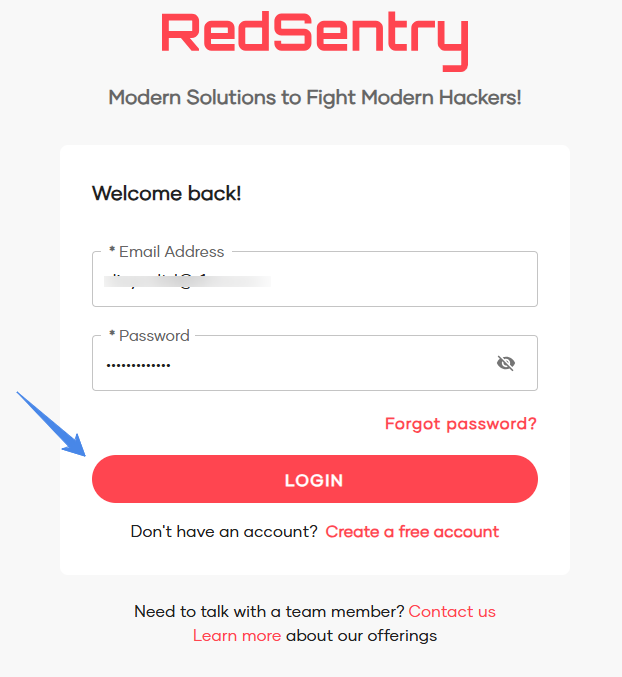
Enter your username and password as usual.
-
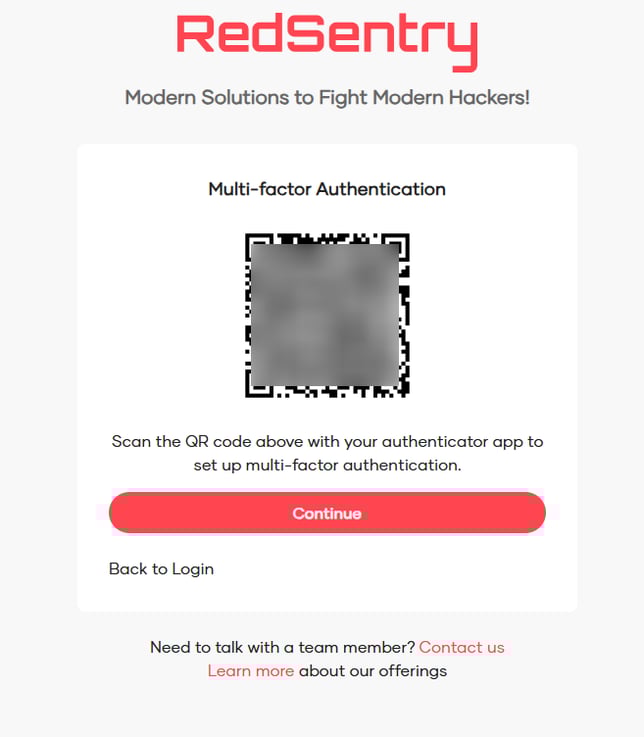
You’ll be prompted to scan a QR code. Use any authenticator app such as Google Authenticator, Microsoft Authenticator, or Authy. Scan the QR code.
-
Once scanned, the app will start generating 6-digit verification codes.
-
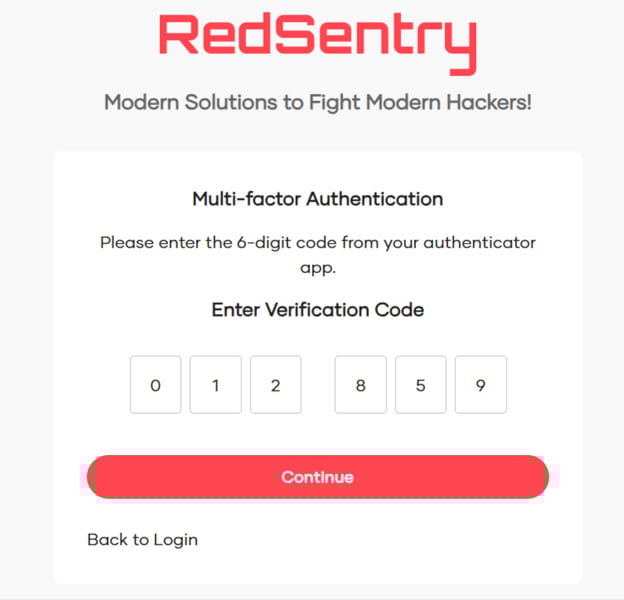
Enter the verification code shown in your app. You will be redirected to your Red Sentry account as usual.
That’s it. Your MFA is now active and linked to your account.
Logging In After Setup
Going forward, each time you log in:
-
Enter your username and password.
-
Open your authenticator app and enter the verification code displayed.
This replaces the previous email-based verification step and ensures a faster, more secure login process.
Optional: Switch Back to Email MFA
If you prefer to receive verification codes by email, you can easily switch your MFA method at any time:
-
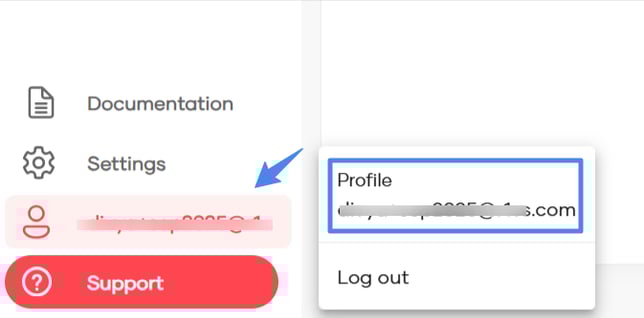
Click on your profile at top right and select Profile Settings.
-
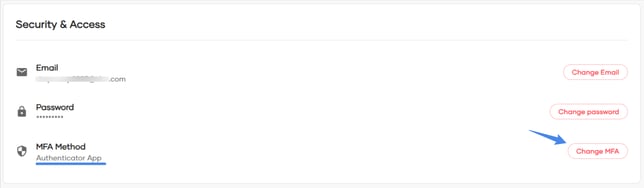
In the Profile page, go to the Security & Access section.
-
Choose Change MFA.
-
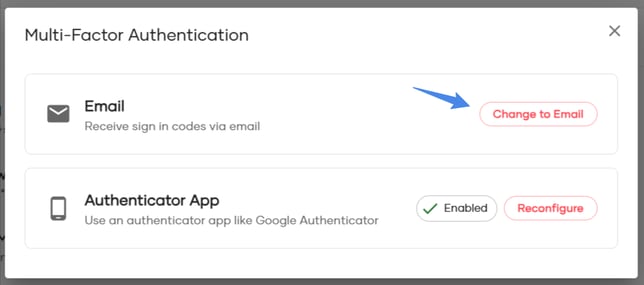
You will see an option to change to email or reconfigure if you want to switch devices.
-
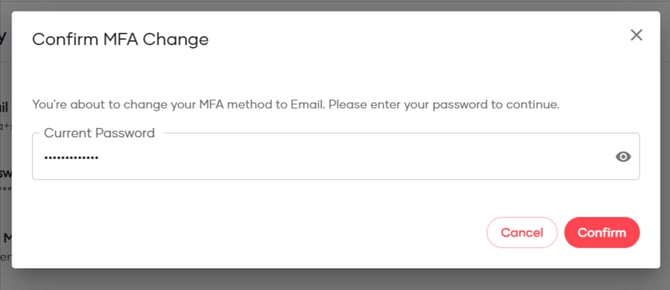
Click on Change to Email. You’ll be asked to verify your identity:
-
Enter your login password, then
-
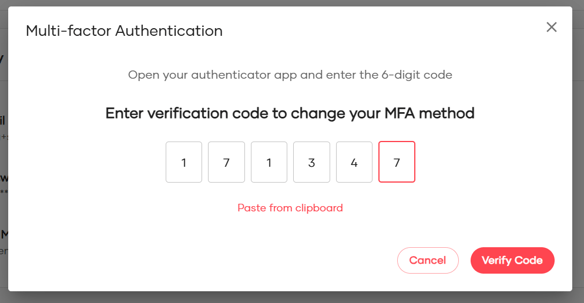
Enter the verification code from your authenticator app.
-
-
A verification code will then be sent to your registered email address.
Enter this code to confirm the change.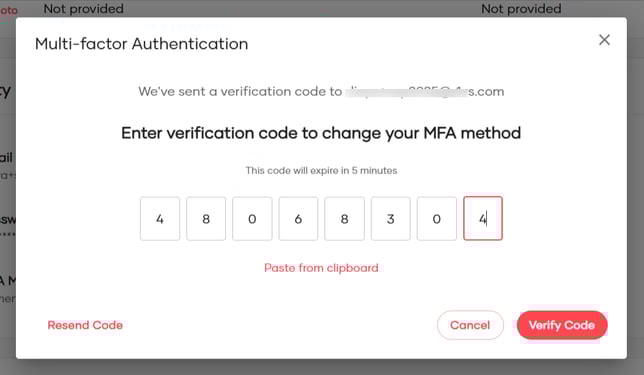
-
Once verified, your MFA method will be switched to Email.
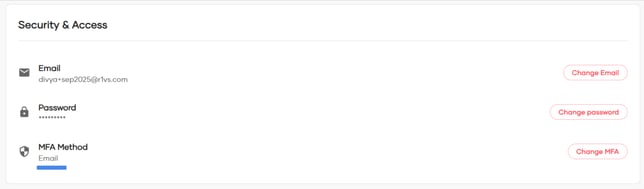
From your next login onward, you’ll receive verification codes via email instead of the authenticator app. This allows you to choose the MFA method that best fits your workflow, while keeping your account protected.