
For customers wishing to implement single sign-on (SSO) capabilities, Red Sentry has the capability to implement this via Security Assertion Markup Language (SAML). SAML is an open standard for exchanging authentication and authorization data between parties, specifically, between an identity provider and a service provider.
%20-%20SAML%20Setup/Single%20Sign%20On%20(SSO)%20-%20SAML%20Setup1.png?width=624&height=105&name=Single%20Sign%20On%20(SSO)%20-%20SAML%20Setup1.png)
As shown above, a user signs into the identity provider. From there, the identity provider will use the user's credentials to log in to Red Sentry via a SAML assertion.
The following sections explain how to configure SSO using Azure AD and Okta as identity providers (IDPs). If you're using a different IDP, the overall process remains similar, though specific setup steps and screens may vary.
Azure as IDP
- To set up Azure as an identity provider, you must first create an enterprise application by navigating to Azure Active Directory -> Enterprise Applications as shown in the images below:
%20-%20SAML%20Setup/Single%20Sign%20On%20(SSO)%20-%20SAML%20Setup2.png?width=670&height=113&name=Single%20Sign%20On%20(SSO)%20-%20SAML%20Setup2.png)
- After clicking “Azure Active Directory,” click on “Enterprise applications”.
%20-%20SAML%20Setup/Single%20Sign%20On%20(SSO)%20-%20SAML%20Setup3.png?width=516&height=980&name=Single%20Sign%20On%20(SSO)%20-%20SAML%20Setup3.png)
- Next, click “New application”
%20-%20SAML%20Setup/Single%20Sign%20On%20(SSO)%20-%20SAML%20Setup4.png?width=624&height=221&name=Single%20Sign%20On%20(SSO)%20-%20SAML%20Setup4.png)
- Then, click “Create your own application”. Make sure to click the “integrate any other application” button and give the application a name. Finally, click the "create" button.
%20-%20SAML%20Setup/Single%20Sign%20On%20(SSO)%20-%20SAML%20Setup5.png?width=670&height=140&name=Single%20Sign%20On%20(SSO)%20-%20SAML%20Setup5.png)
- Before we can set up SAML, make sure to add the necessary users to the application. Otherwise, they won't have access.
%20-%20SAML%20Setup/Single%20Sign%20On%20(SSO)%20-%20SAML%20Setup6.png?width=624&height=416&name=Single%20Sign%20On%20(SSO)%20-%20SAML%20Setup6.png)
- After that click on the “Single sign-on” button to set up SAML authentication.
%20-%20SAML%20Setup/Single%20Sign%20On%20(SSO)%20-%20SAML%20Setup7.png?width=624&height=412&name=Single%20Sign%20On%20(SSO)%20-%20SAML%20Setup7.png)
- As shown in the image below we only need to fill out two things.
- SSO URL: “https://blue-api.redsentry.com/saml/acs?team=<YourTeamNameHere>”. Make sure to replace TeamNameHere with your team otherwise the login will fail.
Note: If your team name has space in it, then it has to be properly escaped.
For eg Team : "Sample-Inc Ltd." then the SSO URL would be
https://blue-api.redsentry.com/saml/acs?team=Sample-Inc%20Ltd.
- The audience URI AKA SP Entity ID should be “https://blue-api.redsentry.com/”
%20-%20SAML%20Setup/Single%20Sign%20On%20(SSO)%20-%20SAML%20Setup8.png?width=624&height=200&name=Single%20Sign%20On%20(SSO)%20-%20SAML%20Setup8.png)
SAML
- In the same page you need to configure the SAML attribute that will contain the username you wish to login to the platform. The attribute name should be “username” and the value should be the users email address.
%20-%20SAML%20Setup/Single%20Sign%20On%20(SSO)%20-%20SAML%20Setup8.5.png?width=670&height=111&name=Single%20Sign%20On%20(SSO)%20-%20SAML%20Setup8.5.png)
%20-%20SAML%20Setup/Single%20Sign%20On%20(SSO)%20-%20SAML%20Setup9.png?width=624&height=311&name=Single%20Sign%20On%20(SSO)%20-%20SAML%20Setup9.png)
- Save the changes. Once the IDP is set up you can configure in the Red Sentry platform. You will need grab the following data (highlighted in the below image)
- Download the SAML signing certificate
- Login URL
- Azure AD Identifier
%20-%20SAML%20Setup/Single%20Sign%20On%20(SSO)%20-%20SAML%20Setup10.png?width=624&height=363&name=Single%20Sign%20On%20(SSO)%20-%20SAML%20Setup10.png)
Red Sentry Setup
- Log in to the platform.
- Navigate to Settings menu. Click Single Sign On tab.
%20-%20SAML%20Setup/Single%20Sign%20On%20(SSO)%20-%20SAML%20Setup11.png?width=624&height=157&name=Single%20Sign%20On%20(SSO)%20-%20SAML%20Setup11.png)
- Paste the Azure AD Identifier in Entity ID field
- Paste the Login URL in the SSO Service field.
- Open the downloaded certificate in a text editor. Copy the base64-encoded certificate into IDP Certificate field (Note: DO NOT include the “-----BEGIN CERTIFICATE-----” and -----END CERTIFICATE----- part when copying)
- Fill the Redirect URL as https://app.redsentry.com (If you have a white-labeled domain, then please use that)
- Click Submit
Testing the Login
Now that the configuration are finished, we should be good to test the SSO login. There are two ways to do
- The first option is by using the test button as shown in the image below: Once you click the Test button, you should be logged into the Red Sentry application successfully.
%20-%20SAML%20Setup/Single%20Sign%20On%20(SSO)%20-%20SAML%20Setup12.png?width=624&height=491&name=Single%20Sign%20On%20(SSO)%20-%20SAML%20Setup12.png)
- The second option involves going to your application as shown below. Click on the application to be redirected to Red Sentry
%20-%20SAML%20Setup/Single%20Sign%20On%20(SSO)%20-%20SAML%20Setup13.png?width=624&height=255&name=Single%20Sign%20On%20(SSO)%20-%20SAML%20Setup13.png)
Once you are logged in, you should be seeing the Pentests page by default
%20-%20SAML%20Setup/Single%20Sign%20On%20(SSO)%20-%20SAML%20Setup14.png?width=670&height=222&name=Single%20Sign%20On%20(SSO)%20-%20SAML%20Setup14.png)
Note: If the user does not have an account in Red Sentry, then a new account will be automatically created when they first login.
All SAML users will have the following username format: <email>:<teamID>:SAML
OKTA as IDP
In this example we are going to showcase how to get started by using Okta as the identity provider. The steps mentioned below are specific to Okta, other solutions will have a slightly different setup.
Refer this Okta documentation to add a SAML application - https://help.okta.com/oag/en-us/content/topics/access-gateway/add-app-saml-pass-thru-add-okta.htm
- Log in to Okta , go to the Admin panel , and create an app integration as shown in the image below:
%20-%20SAML%20Setup/Single%20Sign%20On%20(SSO)%20-%20SAML%20Setup15.png?width=624&height=329&name=Single%20Sign%20On%20(SSO)%20-%20SAML%20Setup15.png)
- In the next page make sure you specify your team name in the GET variable “team” as shown in the below image:
%20-%20SAML%20Setup/Single%20Sign%20On%20(SSO)%20-%20SAML%20Setup16.png?width=670&height=366&name=Single%20Sign%20On%20(SSO)%20-%20SAML%20Setup16.png)
- You need to fill out two things:
- SSO URL: https://blue-api.redsentry.com/saml/acs?team=TeamNameHere
- SP Entity ID: https://blue-api.redsentry.com/
- In the same page you need to configure the SAML attribute that will contain the username you want to use to login in to the platform. The attribute name should be “username” and the value should be the users email address.
%20-%20SAML%20Setup/Single%20Sign%20On%20(SSO)%20-%20SAML%20Setup17.png?width=624&height=236&name=Single%20Sign%20On%20(SSO)%20-%20SAML%20Setup17.png)
- Once the attribute is set, IDP should be properly configured to work with Redsentry. The last step is to add the necessary setting in the Red Sentry platform
Red Sentry Setup
- Log in to the platform.
- Navigate to Settings menu. Click Single Sign On tab.
- Click Add SSO Credentials button
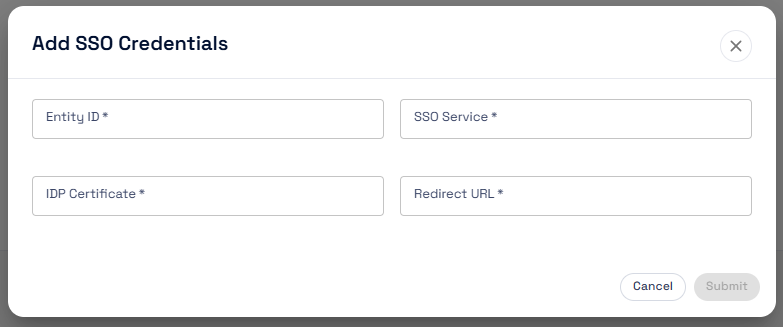
- Go to Okta to retrieve the details for SSO settings. Go to your application and click View Setup Instruction.
%20-%20SAML%20Setup/Single%20Sign%20On%20(SSO)%20-%20SAML%20Setup19.png?width=624&height=432&name=Single%20Sign%20On%20(SSO)%20-%20SAML%20Setup19.png)
- You should be seeing all the necessary settings
- Now copy the settings into the Red Sentry platform. (Note: when copying the IDP certificate DO NOT include the “-----BEGIN CERTIFICATE-----” and -----END CERTIFICATE----- part)
%20-%20SAML%20Setup/Single%20Sign%20On%20(SSO)%20-%20SAML%20Setup20.png?width=624&height=355&name=Single%20Sign%20On%20(SSO)%20-%20SAML%20Setup20.png)
- Enter the Redirect URL as https://app.redsentry.com (If you have a whitelabeled domain, then please use that)
- Click Submit
Testing the Login
- As the configuration is completed in Okta and the Red Sentry platform, the last setup would be to test the SSO login process.
-
Go to Okta, select My Apps. Select the app and verify if you can login into Red Sentry
%20-%20SAML%20Setup/Single%20Sign%20On%20(SSO)%20-%20SAML%20Setup21.png?width=564&height=351&name=Single%20Sign%20On%20(SSO)%20-%20SAML%20Setup21.png)
- As soon as you click on the app, it should log in to Red Sentry platform using the email supplied by Okta. (Note: If a user doesn't have an account in the platform, then a new account will be automatically created when they first login). You should be seeing your pentest list page as below
%20-%20SAML%20Setup/Single%20Sign%20On%20(SSO)%20-%20SAML%20Setup22.png?width=644&height=214&name=Single%20Sign%20On%20(SSO)%20-%20SAML%20Setup22.png)
- When you log in using SAML SSO, the username will be displayed as "<email>:<teamID>:SAML". For eg johndoe@rs.com:55:SAML