
Once your Statement of Work (SOW) is signed, your invoice is available in the Red Sentry platform. From there, you can:
- Update your organization's billing contact information.
- Add your own reference, such as a PO number, to the invoice.
- Download the invoice.
- Pay the invoice by card.
- Share a payment link with someone else, such as your finance team.
Who can do this: Users with the Account Owner or Organization Admin role. Users with the Engagement Viewer role can't see invoices or payment details.
Find Your Invoice
-
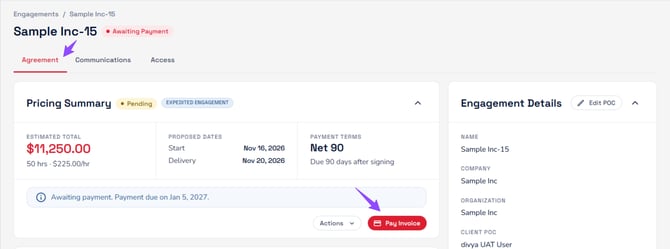
Go to Engagements and open the engagement. Once your SOW is signed, you can download your invoice and pay through card from the platform whenever you're ready.
- On the Agreement tab, the Pricing Summary shows the estimated total, proposed dates, payment terms, and the payment due date.
- Click Pay Invoice.
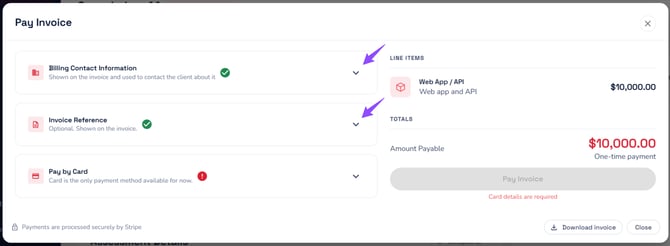
The Pay Invoice window opens. The left side has three sections: Billing Contact Information, Invoice Reference, and Pay through Card. The right side shows the line items and the amount payable.
A green check mark next to a section means it's complete. A red exclamation mark means it needs your attention.
Update Billing Contact Information
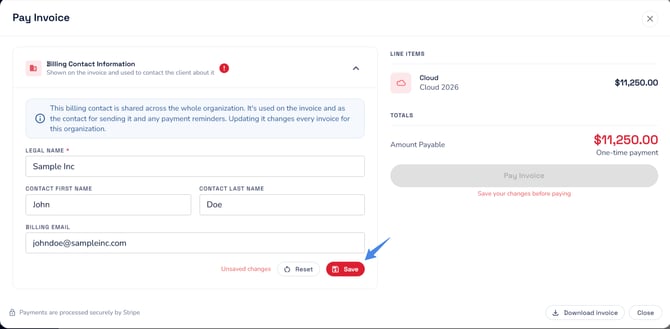
The billing contact appears on the invoice and receives the invoice and any payment reminders.
Important: The billing contact is shared across your whole organization. Updating it changes every invoice for your organization, not just this one.
- In the Pay Invoice window, expand Billing Contact Information.
- Update the Legal Name (required), Contact First Name, Contact Last Name, and Billing Email.
- Click Save.
To undo unsaved changes, click Reset.
Add an Invoice Reference (Optional)
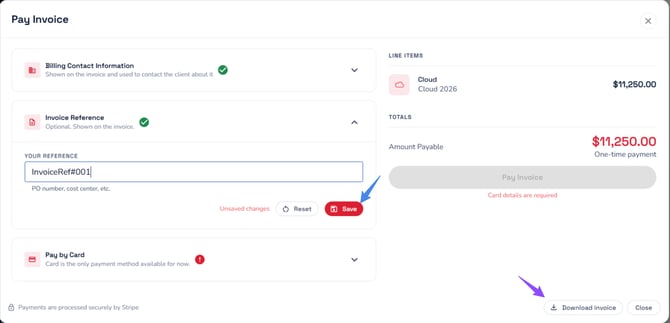
Add your own reference, such as a PO number or cost center, so your finance team can match the invoice to your records. The reference appears on the invoice. You can't change it after the invoice is paid.
- In the Pay Invoice window, expand Invoice Reference.
- Enter your reference in Your Reference.
- Click Save.
Download Invoice
In the Pay Invoice window, click Download invoice. If you've updated the billing contact or added a reference, save your changes first so they appear on the downloaded invoice.
Pay by Card
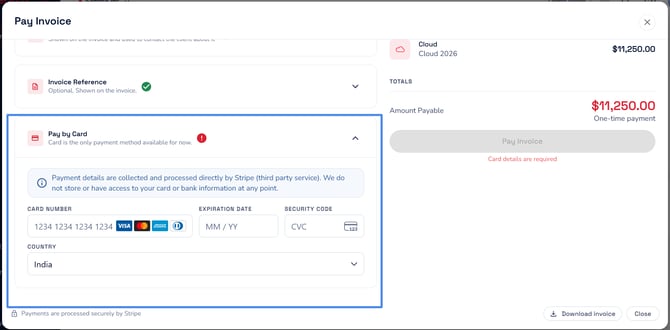
Card is currently the only payment method available in the platform. Payments are processed securely by Stripe.
- In the Pay Invoice window, expand Pay by Card.
- Enter your card details.
- Check the Amount Payable, then click Pay Invoice.
The Pay Invoice button stays disabled until you enter your card details and save any changes to the other sections.
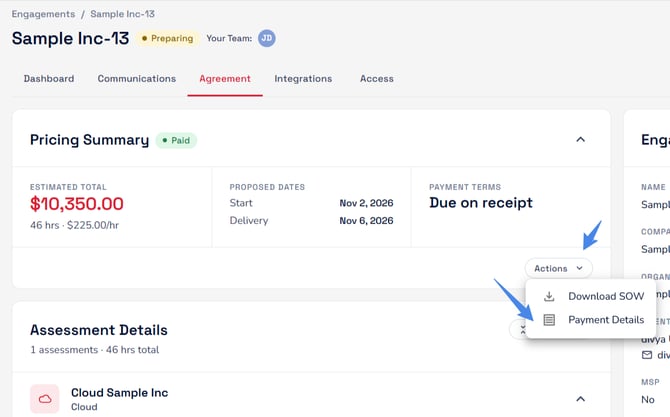
After you pay, the Pay Invoice button no longer appears, and you can download your receipt from the Actions menu instead.
Paying another way: You can also pay outside the platform. Contact your Account Executive to arrange it.
Download Your Receipt
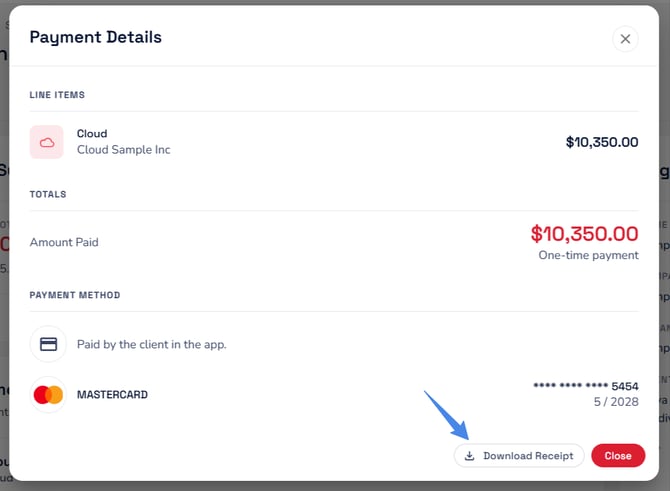
Once your invoice is paid, you can download the receipt. Click Actions in the Pricing Summary, then click Download Receipt. If you paid outside the platform and don't see a receipt, contact your Account Executive.
Share a Payment Link
If someone else handles payment, such as your finance or accounts payable team, you can email them a secure link to view and pay the invoice.
- On the engagement's Agreement tab, click Actions in the Pricing Summary.
- Click Share Payment Link.
- Enter the person's First Name, Last Name, and Email.
- Click Share.
Red Sentry emails them a secure link to view and pay the invoice. When they pay, the invoice is marked as paid automatically, and the receipt becomes available in the platform.
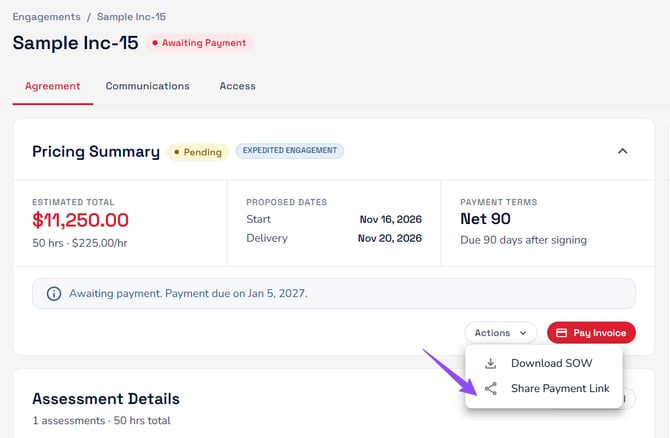
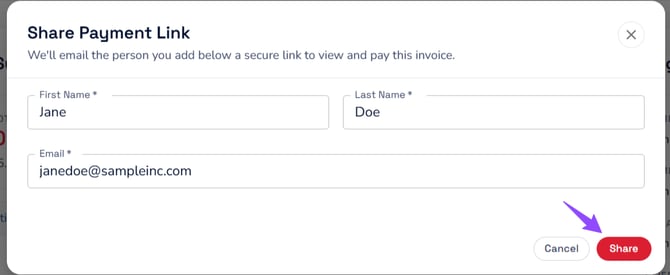
The recipient doesn't need a Red Sentry account. To resend the link, follow the same steps. Make sure the email address is correct before you click Share.
Need Help?
For billing questions, tag your Account Executive in the engagement's Communications tab. You can also contact through Help in the platform, or email to support@redsentry.com.